Salesforce Data Backup to Your Own PostgreSQL — Queryable and Versioned

Ask where your Salesforce backup actually lives, and the answer is usually "somewhere in the vendor's cloud, in a format you'll see only if you ever need a restore." That's fine — right up until you want to query it, report on it, prove what changed, or simply own your own data.
mtdt.io's smart data backup takes a different stance: your Salesforce records are backed up into your own PostgreSQL database — a real, queryable database you control, with a full history of every backup, ready to restore back into an org.
Records, not just configuration
Two different things can go wrong in Salesforce, and they need different backups:
- Metadata — the configuration: fields, flows, Apex, layouts. (That's metadata backup.)
- Data — the records: Accounts, Contacts, Opportunities, custom objects, and the relationships between them.
Smart data backup is about the records. A bad data load, a rogue automation, a mass-delete, an integration gone wrong — those destroy data, and no amount of metadata backup brings it back.
Your data, your database
Instead of a black-box vendor store, you connect your own PostgreSQL — any standard Postgres works, whether managed (Neon, AWS RDS, Cloud SQL, Supabase, Azure Database for PostgreSQL) or self-hosted — and your records land there.
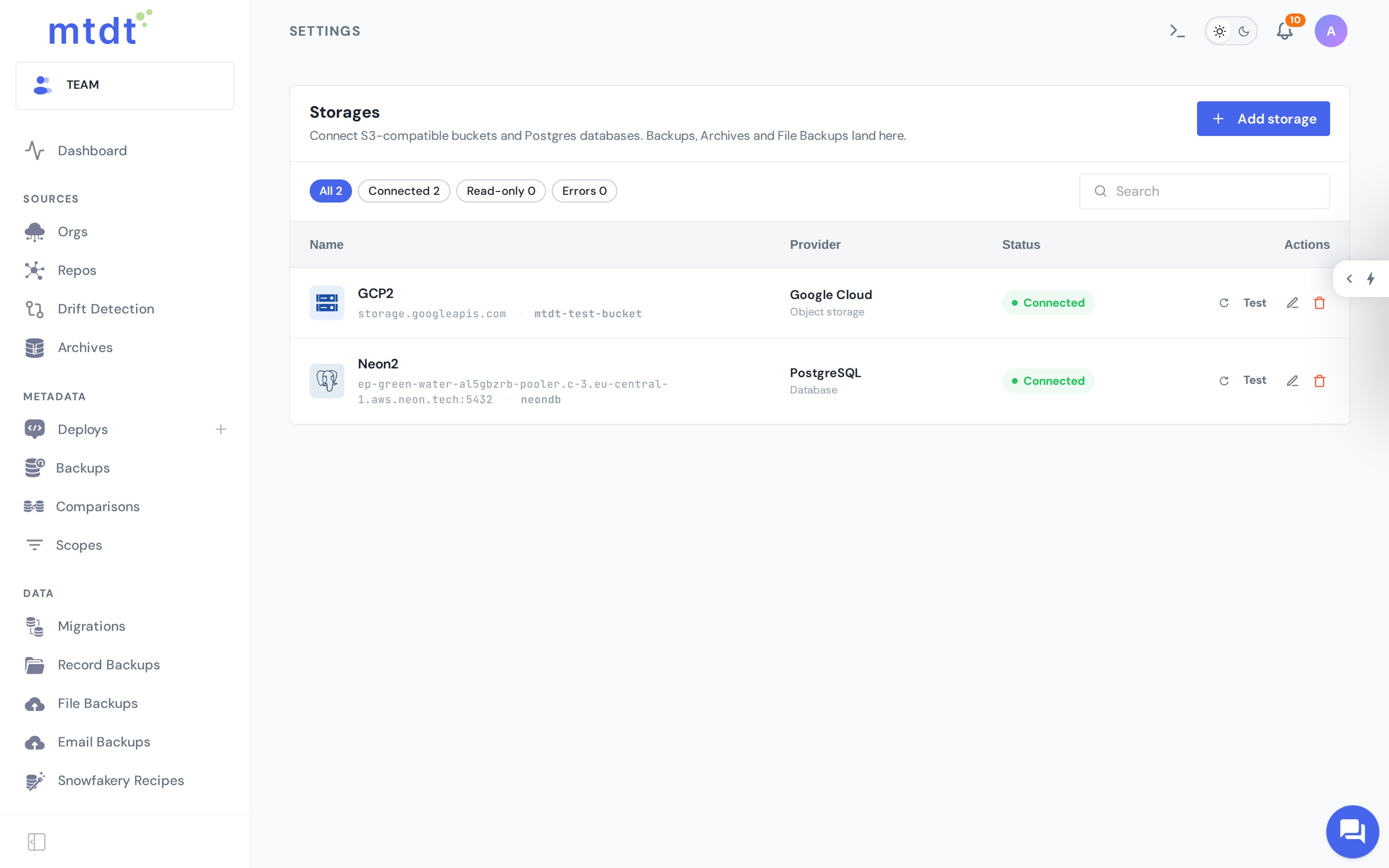
That single choice changes what a backup is:
- No lock-in. The data sits in a standard database you already know how to operate, secure, and pay for.
- It's yours. Your records live in your infrastructure, under your access controls and your region — the same "your data, your rules" principle as private cloud storage.
- It's directly usable. Because it's real PostgreSQL, your BI tool, a reporting dashboard, or a plain SQL query can read the backup without exporting anything first.
Pick the objects, set a schedule
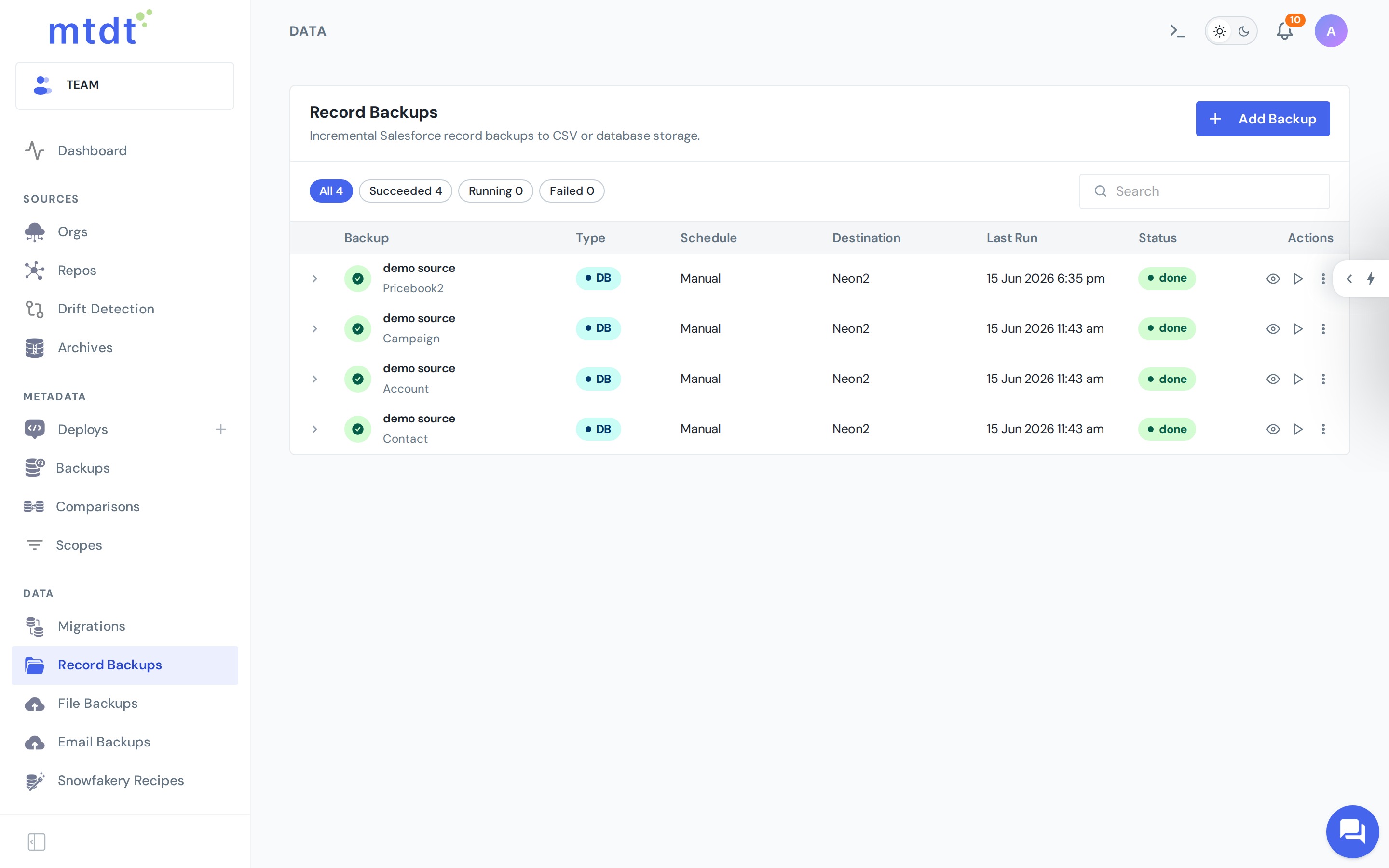
You choose which objects matter — Accounts, Contacts, a few custom objects — and how often to capture them. Backups run incrementally: the first run captures everything, and later runs only pull what changed, so a daily backup stays cheap even on large objects.
A full history you can go back to
This is where "smart" earns its name. Each backup keeps a history instead of overwriting the previous snapshot:
- Every backup run is a point you can return to, not just "the latest copy."
- Deletions never lose data. When a record is deleted in Salesforce, the backup records that it was deleted — the previous state stays in your database. If it's later restored in the org, that's just another point in its history.
- You can answer both "what does this record look like now?" and "what did it look like three runs ago?" — useful for audits, disputes, and "who changed this and when."
A few honest words on what that means: a backup preserves every state it actually observes at each run. It's a reliable point-in-time history, not a live change-data-capture stream of every intermediate edit between runs.
Browse your backup — by record and version
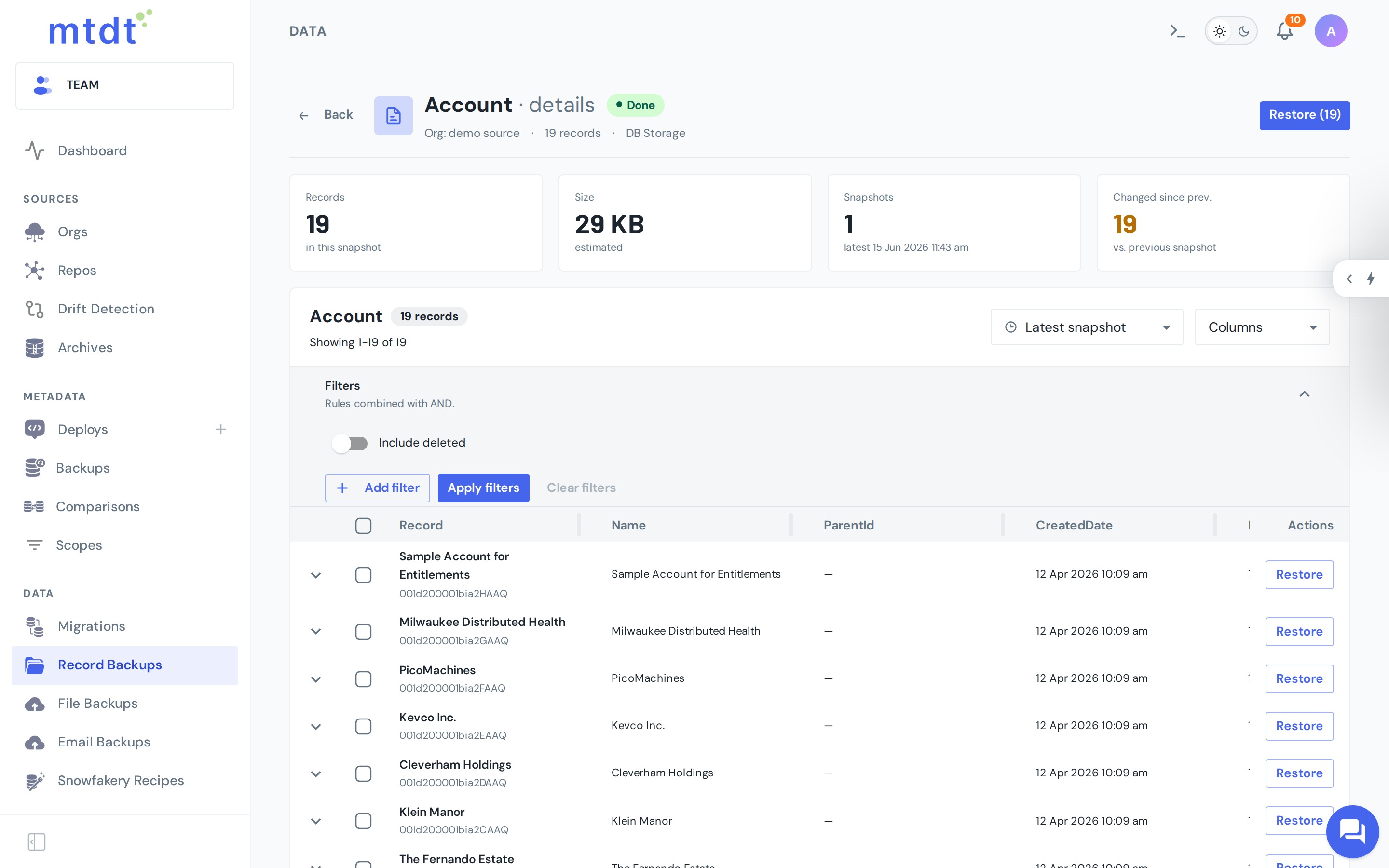
Because the backup lives in a real database, you don't have to restore anything just to look. Open a backup and browse the records it captured: pick a snapshot, filter (including deleted records), and drill into any record to see its history.
Changes in your org won't break the backup
Salesforce orgs are never static — fields get added, renamed, or change type. With a lot of backup approaches, that's exactly when things quietly break or silently drop values.
Smart data backup is built to absorb that: when your Salesforce objects change, the backup adapts to the new shape on the next run and keeps going. Crucially, it's designed so that nothing is silently lost — the raw record is always preserved, even for a field the backup hasn't seen before. You don't babysit it through every admin change.
Restore back into an org
A backup you can't restore is just storage. Pick a record (or a whole set) and restore it into a target org — and before anything is written, mtdt.io shows a field-by-field preview: the backed-up value next to the current org value, so you choose exactly which fields to put back. No blind overwrite.
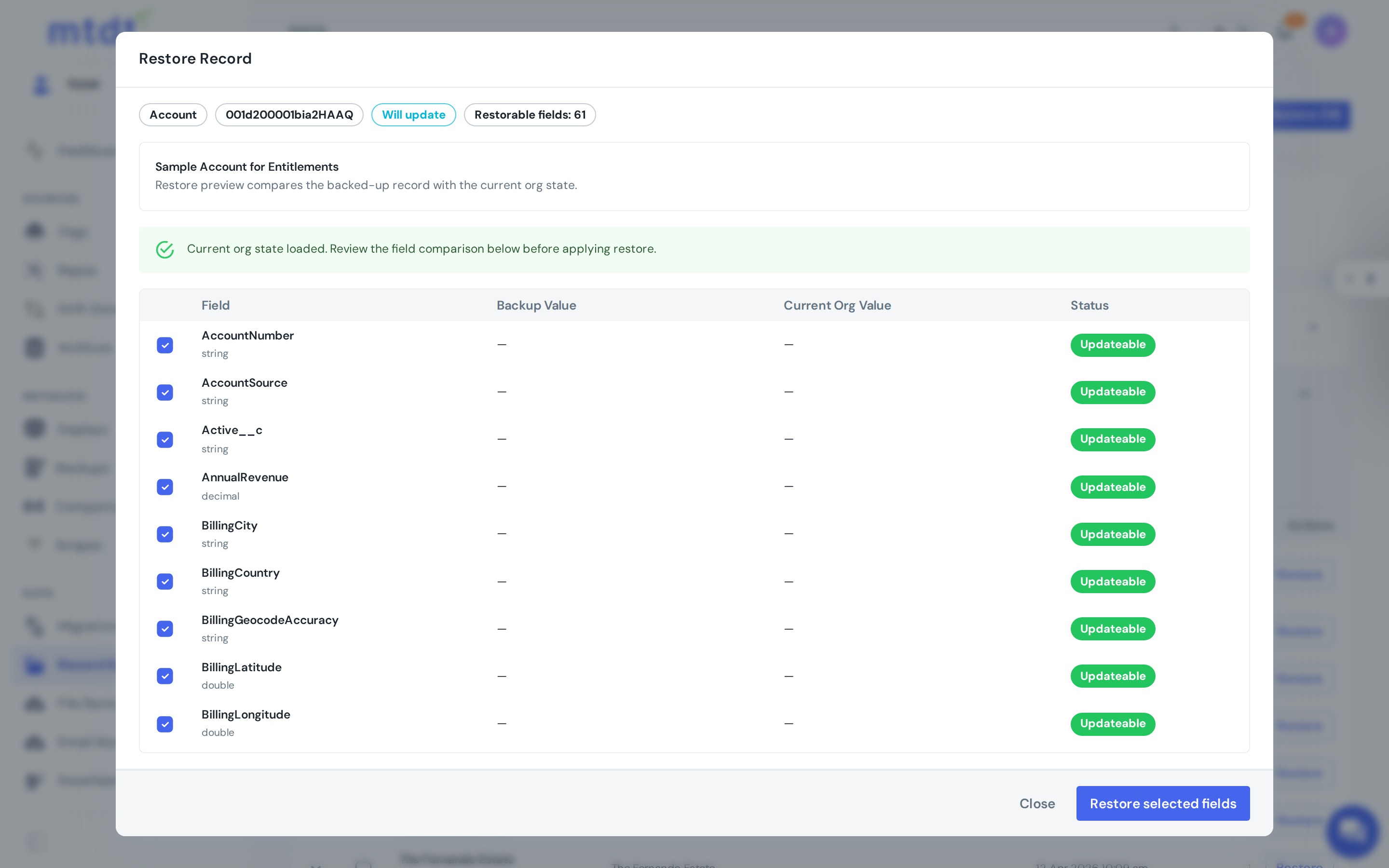
On apply, mtdt writes the records back and re-establishes their relationships, so the restored data is usable, not just present (no orphaned child records). That makes it a real recovery tool for the everyday disasters: an accidental mass-update, a bad data import, a sandbox that needs realistic data.
When you'd reach for it
- Compliance & retention — keep an immutable, time-stamped history of records in a database you control.
- Point-in-time recovery — undo a bad data change by restoring the last good state.
- Reporting & BI off the backup — query your Salesforce data in PostgreSQL without hammering the org's API.
- Audit & investigation — see how a record changed over time, including deletions.
Best practices
- Back up the objects that would actually hurt to lose — start with your core records, not every object in the org.
- Schedule it — a daily incremental backup means your worst case is one day of data, not everything since the last manual run.
- Use a database you'd trust with production data — it's your backup of record; size and secure it accordingly.
- Pair it with metadata backup and rollback for a complete recovery story — config, data, and deployments all covered. (See the disaster-recovery playbook.)
For the step-by-step — connecting a database, choosing objects, scheduling, and restoring — see the guide: PostgreSQL Data Backups.
FAQ
Where does mtdt.io store Salesforce data backups? In your own PostgreSQL database — managed (Neon, AWS RDS, Cloud SQL, Supabase, Azure Database for PostgreSQL) or self-hosted, your choice. That's different from a black-box vendor store: the data sits in standard Postgres you already control, secure, and can query directly with SQL or a BI tool.
Does smart data backup cover metadata too, or just records? Just records — Accounts, Contacts, Opportunities, custom objects, and the relationships between them. Metadata (fields, flows, Apex, layouts) is covered by a separate metadata backup; the two are meant to be paired for a complete recovery story.
How does the backup handle deleted records? It never loses the data. When a record is deleted in Salesforce, the backup records that it was deleted while the previous state stays in your database. If the record is later restored in the org, that restoration is simply recorded as another point in its history.
What happens if a Salesforce object's fields change after I've started backing it up? The backup adapts to the new shape on the next run and keeps going. It's designed so nothing is silently lost — the raw record is always preserved, even for a field the backup hasn't seen before, so you don't have to babysit it through every admin change.
Can I restore backed-up data back into a Salesforce org? Yes. Pick a record or a set of records, and before anything is written mtdt.io shows a field-by-field preview comparing the backed-up value to the current org value, so you choose exactly what to put back. On apply, it writes the records and re-establishes their relationships so restored data isn't left with orphaned child records.
Own your Salesforce data
Your backup should be something you can query, audit, and trust — in a database that's yours. That's what smart data backup is for.
Log in to mtdt.io and back up your records to your own PostgreSQL.
Was this page helpful?
Let us know how we did