Safe Field-Level Deployments: Ship Only What Changed

"Just deploy the one thing I changed" sounds simple. On Salesforce, it's one of the easiest ways to quietly break production.
The problem isn't deploying less — it's that Salesforce treats what you leave out as a decision. Here's why partial deployments are risky, when you actually need them, and how to do field-level deploys without the landmines.
Why partial deployments are dangerous
Salesforce often replaces a component instead of merging into it. Deploy a Profile with only some of its fieldPermissions and Salesforce reads the missing nodes as "remove this access" — users silently lose visibility to fields you never touched, and you find out from a wave of "I can't see X" tickets.
The same trap shows up with picklists: redeploy a field and you can overwrite or drop values that exist on the target but weren't in your source. Or you flatten a target-specific configuration just to ship one small change.
So the goal isn't "deploy everything to be safe" (slow, and it overwrites other people's work) — it's deploy exactly the change, with full visibility into what's included and what isn't.
When you actually need a partial deploy
Real situations where shipping the whole component is the wrong move:
- A picklist gained a value. Marketing added a new "DO NOT USE" status to a field. You want to add that value — without resetting the field's other values or settings.
- Two admins, one object. One added a field; another reorganized a page layout. Each should ship their own change without clobbering the other's.
- One record type, one value. You need a new picklist value available on a single record type — not a full record-type redeploy.
- A layout tweak. Move one field into a section without redeploying an entire page layout that other people have also edited.
- A Lightning page change. Adjust one component or region on a FlexiPage without shipping the whole page.
- A shared value set. Add a couple of values to a global value set used by dozens of fields — deploying only the additions.
In every case the safe deploy is additive and precise: change the one thing, leave the rest of the target intact.
Field-level control with Table View
For structured, reference-heavy metadata — fields, layouts, record types, Lightning pages (FlexiPages), global value sets, and report types — mtdt.io's Table View turns the diff into a row-by-row picker. Instead of choosing whole components, you see each individual property — value by value, layout section by section — and select precisely what to ship.
mtdt then materializes an override that carries only your selected changes on top of the target's existing state, so the things you didn't pick are preserved, not wiped.
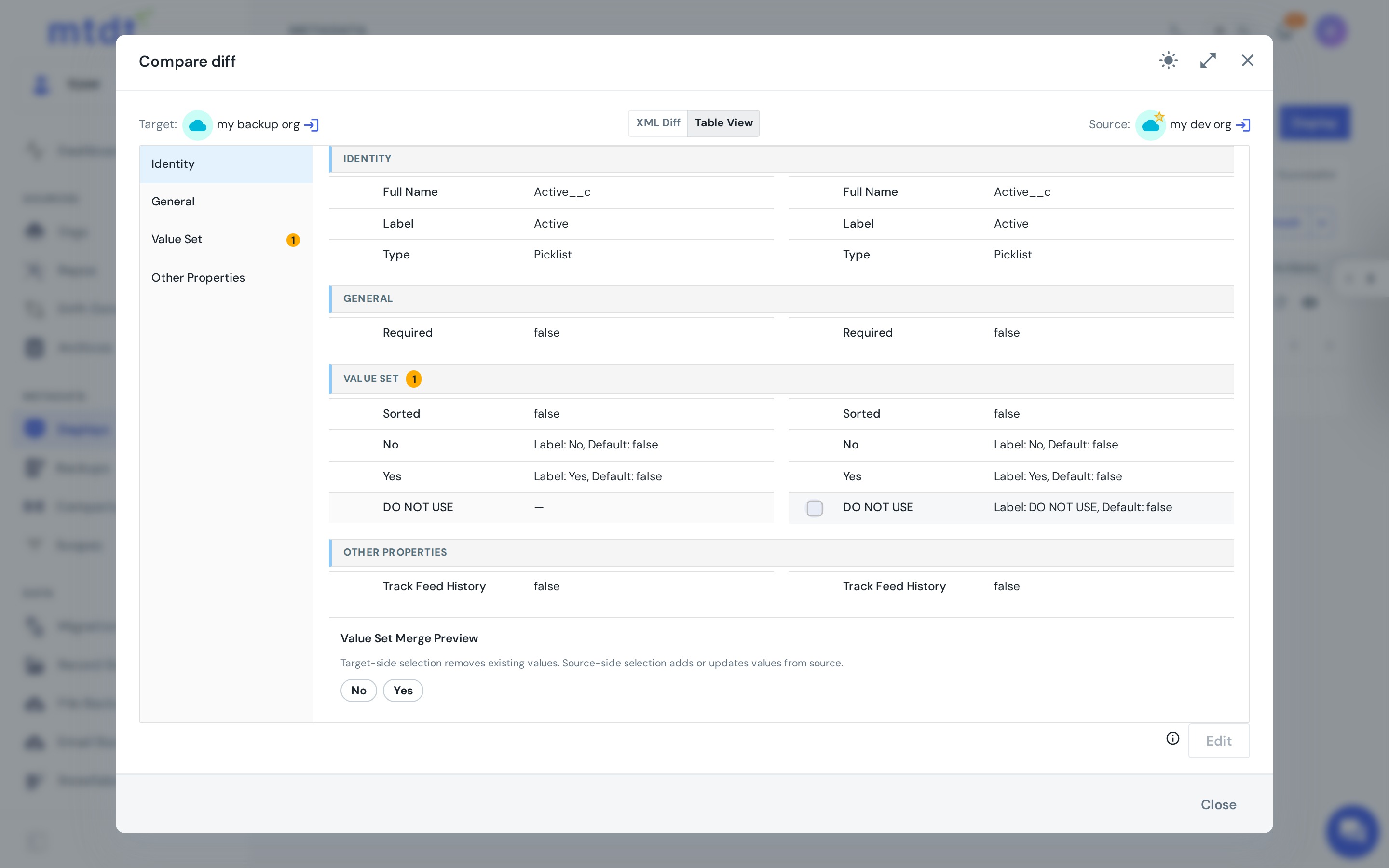
Example: ship only the picklist values you mean to
Take a real diff on the Active field. The source org added a DO NOT USE value; the target still has just Yes and No.
A naïve "deploy the field" risks overwriting the target's own value set. With Table View you tick only the DO NOT USE value — and the Value Set Merge Preview shows exactly what the target will end up with: its existing Yes / No, plus the one value you added.
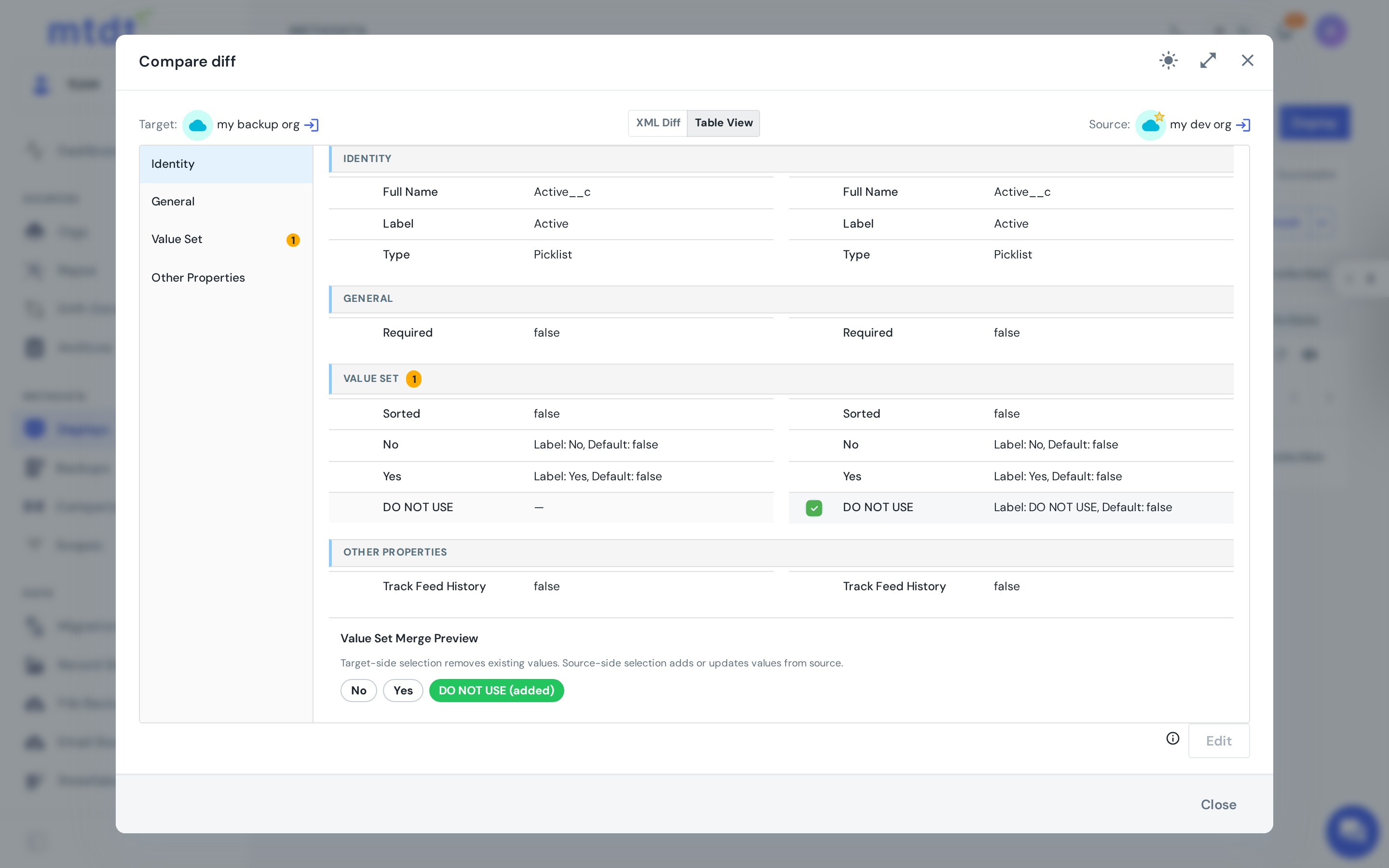
The merge rules are explicit, right in the panel:
- Source-side selection adds or updates values from the source.
- Target-side selection removes existing values.
So you can add a value, retire one, or both — and see the resulting set before you deploy. No guesswork, no accidental wipes.
What this prevents
- No accidental data loss. Your override adds the value or property you chose without dropping the ones you didn't.
- No clobbering parallel work. Two admins can change different parts of the same object without overwriting each other.
- Smaller, clearer deploys. A precise package is far easier to review, validate, and — if needed — roll back.
Field-level vs editing the package
There are two complementary ways to fine-tune a deployment in mtdt.io:
- Table View — pick which changes ship, at the row level (this article).
- Edit Before Deployment — tweak the raw metadata in the package itself (environment-specific values, removing an unsupported component).
Use Table View when the question is what to include; use edit-before-deploy when the question is what an included component should contain.
Best practices
- Review the full diff first, then narrow — don't deploy blind. (See why deployments fail.)
- Watch the merge preview on value sets so you know exactly what the target ends up with.
- Be especially careful with Profiles and Permission Sets — they're where omission does the most damage, so deploy them deliberately and double-check what's included.
- Validate before you commit, and capture a rollback point for anything touching access or data.
Field-level deployment is part of the safe-deployment layer of a complete Salesforce DevOps stack.
FAQ
Why is deploying only part of a Salesforce component dangerous?
Salesforce often replaces a component instead of merging into it. If you deploy a Profile with only some of its fieldPermissions, Salesforce reads the missing nodes as "remove this access" — users can silently lose visibility to fields you never touched. The same trap applies to picklists: redeploying a field can overwrite or drop values that exist on the target but weren't included in your source.
When do I actually need a partial or field-level deploy? When two people are changing different parts of the same object and shouldn't clobber each other's work, when you're adding one picklist value without resetting the rest of the field, when a layout or FlexiPage needs one small tweak instead of a full redeploy, or when a shared global value set just needs a couple of new values added. In each case the goal is additive and precise: change the one thing, leave the rest of the target intact.
What is mtdt.io's Table View and what does it do? Table View turns a diff into a row-by-row picker for structured, reference-heavy metadata — fields, layouts, record types, FlexiPages, global value sets, and report types. Instead of selecting whole components, you select individual properties or values, and mtdt.io materializes an override that carries only your selected changes on top of the target's existing state.
How does the Value Set Merge Preview work for picklist deploys? Before you deploy, the Merge Preview shows exactly what the target will end up with: its existing values plus anything you selected from the source. Source-side selections add or update values; target-side selections remove existing values — so you can add a value, retire one, or both, and see the resulting set before committing.
What's the difference between Table View and Edit Before Deployment? Table View controls which changes ship, at the row level — picking specific fields, values, or layout sections. Edit Before Deployment lets you tweak the raw metadata inside an already-included component, such as environment-specific values. Use Table View to decide what to include, and edit-before-deploy to adjust what an included component contains.
Ship the change, not the whole org
Deploy exactly what changed — down to a single picklist value — without wiping what you didn't.
Log in to mtdt.io and try a field-level deployment with Table View.
Was this page helpful?
Let us know how we did