What Did You Change in That Sandbox? Salesforce Source Tracking, Without the CLI

You spent the afternoon building in a sandbox — a couple of fields on Account, a tweak to a flow, a new permission set, an Apex class. Now you need to move it to the next org. Quick question: what exactly did you change?
Salesforce won't tell you on its own — but a source-tracked org (a scratch org, or a sandbox with source tracking enabled) already records every metadata change you make. mtdt.io's Source Tracking reads that log: start a Record Session, build normally, and it lists every component you touched by name — ready to retrieve, download, deploy, or open as a pull request, no CLI required. Without it, you rebuild the list from memory, click through Setup hunting for every component, and hope you didn't miss the one field that quietly breaks everything downstream.
Why "what changed?" is such a hard question
Salesforce keeps the truth in the org, not in files. Out of the box there's no running list of "here's everything you touched since this morning." That leaves the usual options, all of them bad:
- Rebuild the change set by hand — scroll Setup, tick boxes, and trust your memory. Miss one dependency and the deploy fails (or worse, half-works).
- Deploy the whole object or profile — and overwrite a teammate's work along the way.
- Drop to the CLI —
sf project retrieve startwith source tracking works, but now you're in a terminal managing a project folder for what should be a five-minute change.
What you actually want is simple: show me what I changed, and let me take just that forward.
Record a session, then just work
mtdt.io does exactly that with Source Tracking. Open a source-tracked org, click Record Session, and press Start Tracking before you begin:
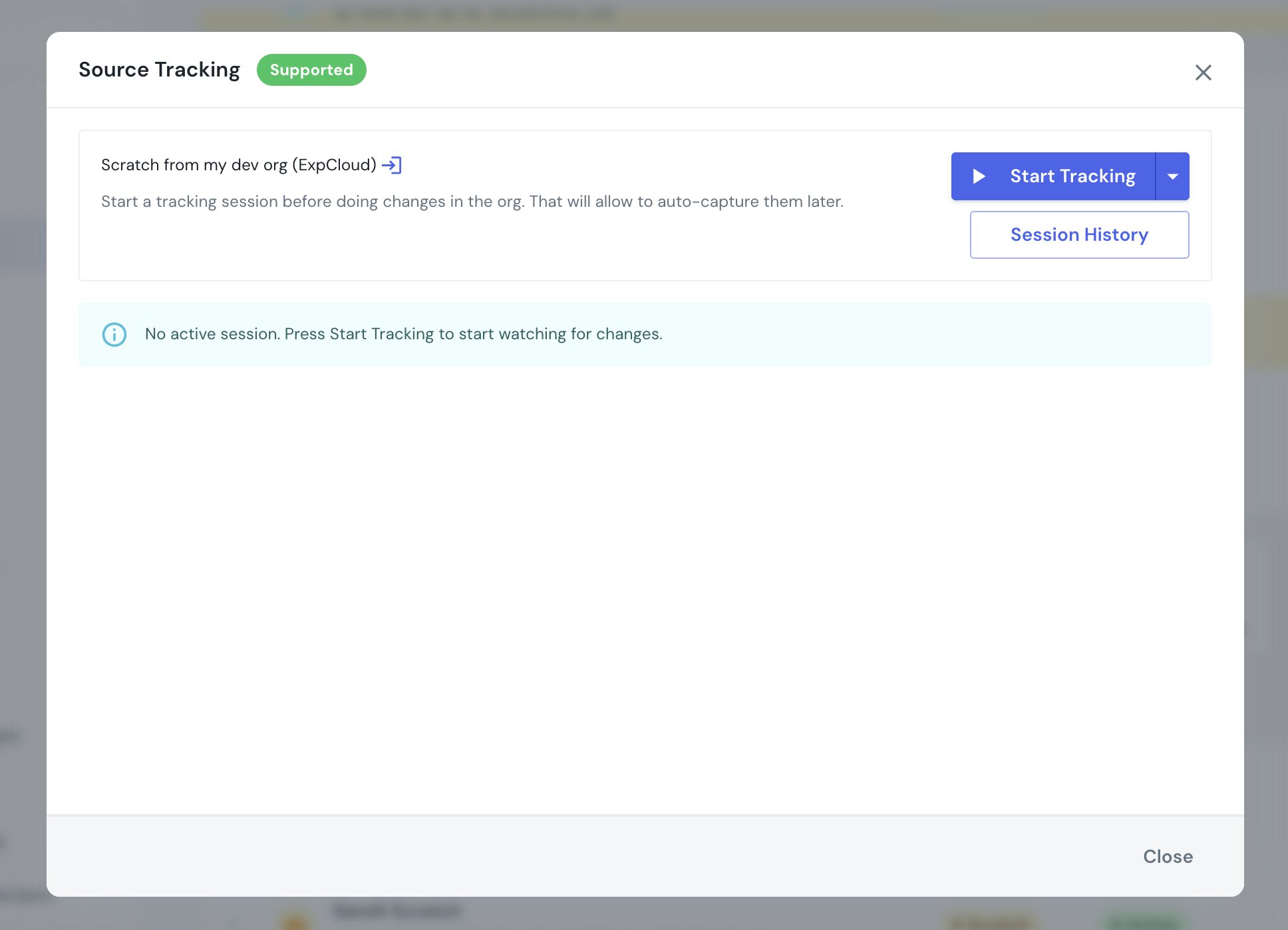
Now go build. mtdt watches the org — "Session is active. Watching for changes" — and, using Salesforce's own source tracking, records every metadata change you make, whether through the UI, the Metadata API, or anything else. When you come back and hit Refresh, the session is summarized by metadata type, with how many components are retrievable:
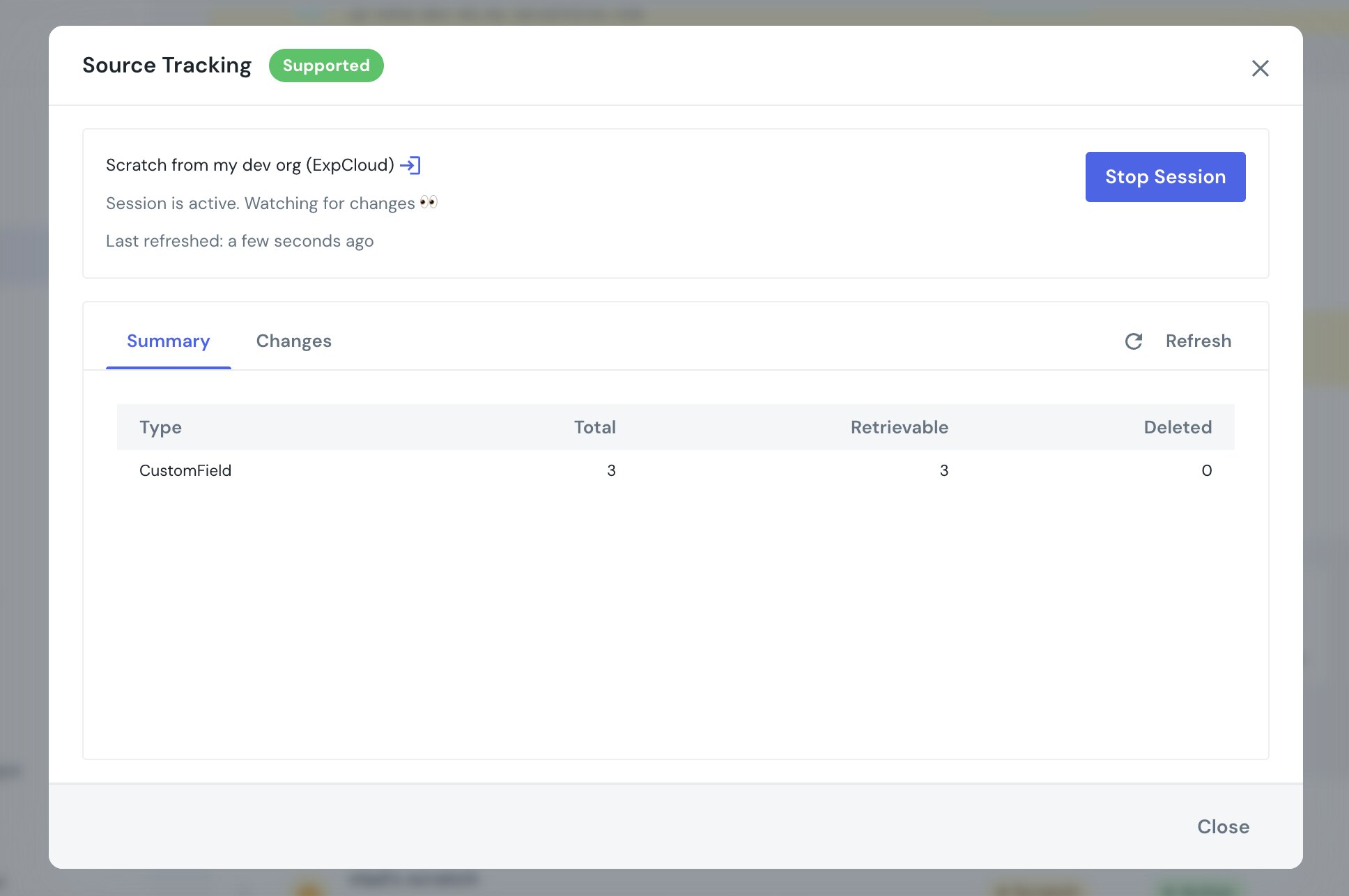
Three custom fields, all retrievable, none deleted — and a Changes tab lists every component by name. That's the inventory you've been rebuilding by hand, generated for you.
Prefer to look back instead of planning ahead? You can also seed the session in the past — start tracking and rewind to capture work you'd already begun.
End the session and take the changes with you
When you're done, Stop Session shows the tally — "Found total 3 changes during session" — and End & Retrieve pulls exactly those components out of the org:
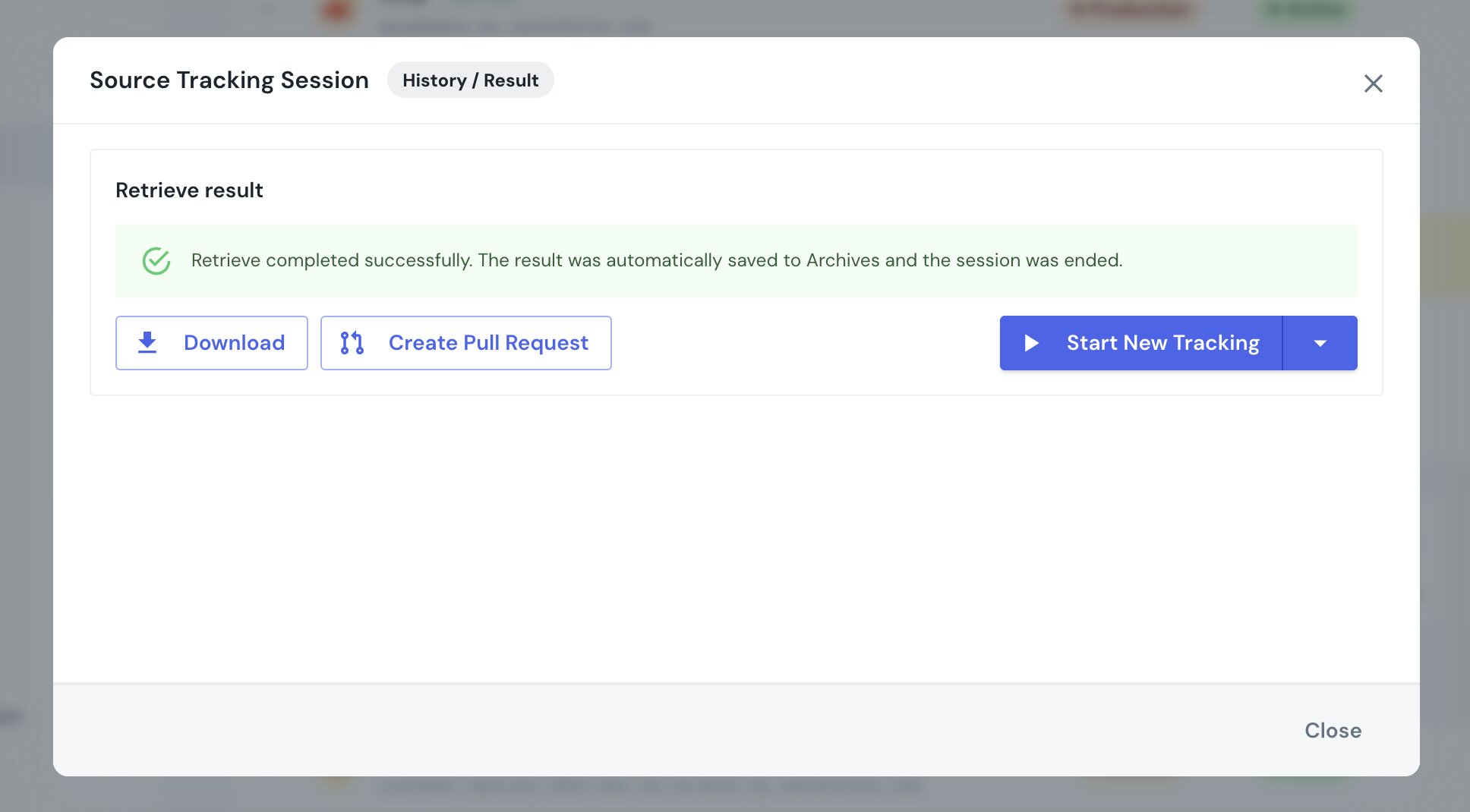
The retrieved metadata lands in your Archives as a lightweight, deployable package. From there you can:
- Download it as a metadata zip,
- Deploy it straight to the next org, or
- Create a Pull Request to commit the change set to git.
No CLI, no project folder, no hand-built change set — the work you did is the deployment.
The one requirement
Source Tracking needs a source-tracked org: a scratch org, or a sandbox with "Source Tracking in Sandboxes" enabled. mtdt.io tells you up front — the dialog shows a green Supported badge when the org qualifies. (Production and most Developer orgs don't track source, so there's nothing to record there.)
Good practices
- Start the session first. Tracking captures changes from the moment you start (or from the point you rewind to) — begin the session before a focused build for the cleanest list.
- Refresh before you stop. The preview updates on demand, so refresh once you've finished to catch your last few changes.
- Retrieve, then review. The Archive is an ordinary metadata package — open the diff, or the pull request, and eyeball it before deploying onward.
Stop reconstructing change sets from memory. Record the session, build, and ship exactly what you touched.
FAQ
How do I see exactly what I changed in a Salesforce sandbox? Use mtdt.io's Source Tracking: open a source-tracked org, click Record Session, and press Start Tracking before you begin building. mtdt.io watches the org via Salesforce's own source tracking and records every metadata change, whether made through the UI, the Metadata API, or anything else.
Does Source Tracking work on any Salesforce org? No — it requires a source-tracked org, which means a scratch org or a sandbox with "Source Tracking in Sandboxes" enabled. mtdt.io shows a green Supported badge when the org qualifies; production and most Developer orgs don't track source, so there's nothing to record there.
What can I do with the changes after a tracking session ends? Stop Session shows the tally of changes found, and End & Retrieve pulls exactly those components out of the org into your Archives as a deployable package. From there you can download it as a metadata zip, deploy it straight to the next org, or create a pull request to commit it to git.
Do I need the Salesforce CLI to use Source Tracking? No. mtdt.io's Record Session reads Salesforce's source tracking through the UI — no terminal, project folder, or CLI commands are required to capture or retrieve your changes.
Can I capture changes I already made before starting a tracking session? Yes — mtdt.io lets you seed the session in the past: start tracking and rewind to capture work you'd already begun, instead of only tracking forward from the moment you click Start.
See what you actually changed
Log in to mtdt.io, open a scratch org or source-tracked sandbox, and start a Record Session.
Related: The Post-Sandbox-Refresh Checklist · Deploy and Back Up Metadata to Git
Was this page helpful?
Let us know how we did