The Salesforce Post-Sandbox-Refresh Checklist: Everything to Fix Before Your Users Notice

You refresh a sandbox, and a day later the tickets start: users can't log in, a workflow blasted a test email to a real customer, an integration is quietly hitting production, and the feature someone spent a week building is gone. All of it is expected — a refresh replaces the sandbox with a fresh copy of its production source, and that one reset touches a lot of things at once.
Here's the complete checklist, grouped and ordered so you handle the dangerous things first.
What a refresh actually does
A refresh rebuilds the sandbox from its source org. Along the way Salesforce:
- Deactivates your users and appends
.invalidto every user's email, so the sandbox can't reach real inboxes. - Resets email deliverability to System email only.
- Turns off automation — scheduled Apex, flows, and workflow rules all come back deactivated.
- Deletes connected apps, so their consumer key and secret change.
- Drops the runtime history —
AsyncApexJobrecords, field history, and pending scheduled runs don't carry over (the schedule definitions do). - Copies production data on full and partial copies, which now sits in a lower-trust environment.
- Reverts all metadata to match the source — so any unreleased work that lived only in that sandbox is wiped.
Everything below is about putting those back safely.
1. Stop the sandbox from emailing real people
This is the one that gets admins in trouble, so do it first.
- Email deliverability. A fresh sandbox defaults to System email only — keep it there until your data is masked. Don't switch it to All email on a full or partial copy that still holds real addresses.
- Mask the data. Full and partial copies carry production PII into a lower-trust environment. Scramble emails, phone numbers, names, and financial fields (Salesforce Data Mask or a scripted scramble) before anyone logs in — it's also your GDPR / HIPAA / CCPA obligation.
2. Get your users back in
- Remove the
.invalidsuffix from the emails of everyone who needs access, reactivate their accounts, and reset passwords where needed. - Reassign roles if your hierarchy changed.
- Recreate public groups and selective access, then reapply membership so people get the right visibility.
- Re-verify org-wide email addresses. OWEAs come across unverified — Salesforce won't send "from" them until you re-verify each one, so any process that sends as a shared address fails silently.
3. Turn your automation back on
Salesforce deactivates automation on refresh so it doesn't fire against fresh data.
- Reschedule your scheduled Apex — the class schedules don't auto-resume.
- Re-activate flows — they come back Inactive.
- Re-enable workflow rules and process builders.
- Switch on only what the sandbox needs — leave production-only jobs off.
4. Reconnect your integrations
Everything that talked to the outside world now points at the wrong place or has lost its credentials.
- Connected apps are deleted on refresh — redeploy them, capture the new consumer key and secret, and update the external systems that use them.
- Named credentials and remote site settings still point at production endpoints — repoint them to the sandbox (or disable them) so test traffic never lands on prod.
- Update integration endpoints and webhooks in your middleware to the sandbox URL.
5. Restore environment-specific configuration
- Custom settings and custom metadata holding URLs, API keys, or environment flags need their sandbox values. A
SandboxPostCopyApex class can apply these automatically on every refresh. - Certificates may need to be re-uploaded or re-verified.
6. Get your unreleased work back
Here's the step that's easy to forget: a refresh reverts the sandbox's metadata to match its source. Any in-progress configuration that lived only in that sandbox — fields, flows, layouts, Apex you hadn't deployed anywhere else — is gone, with no undo.
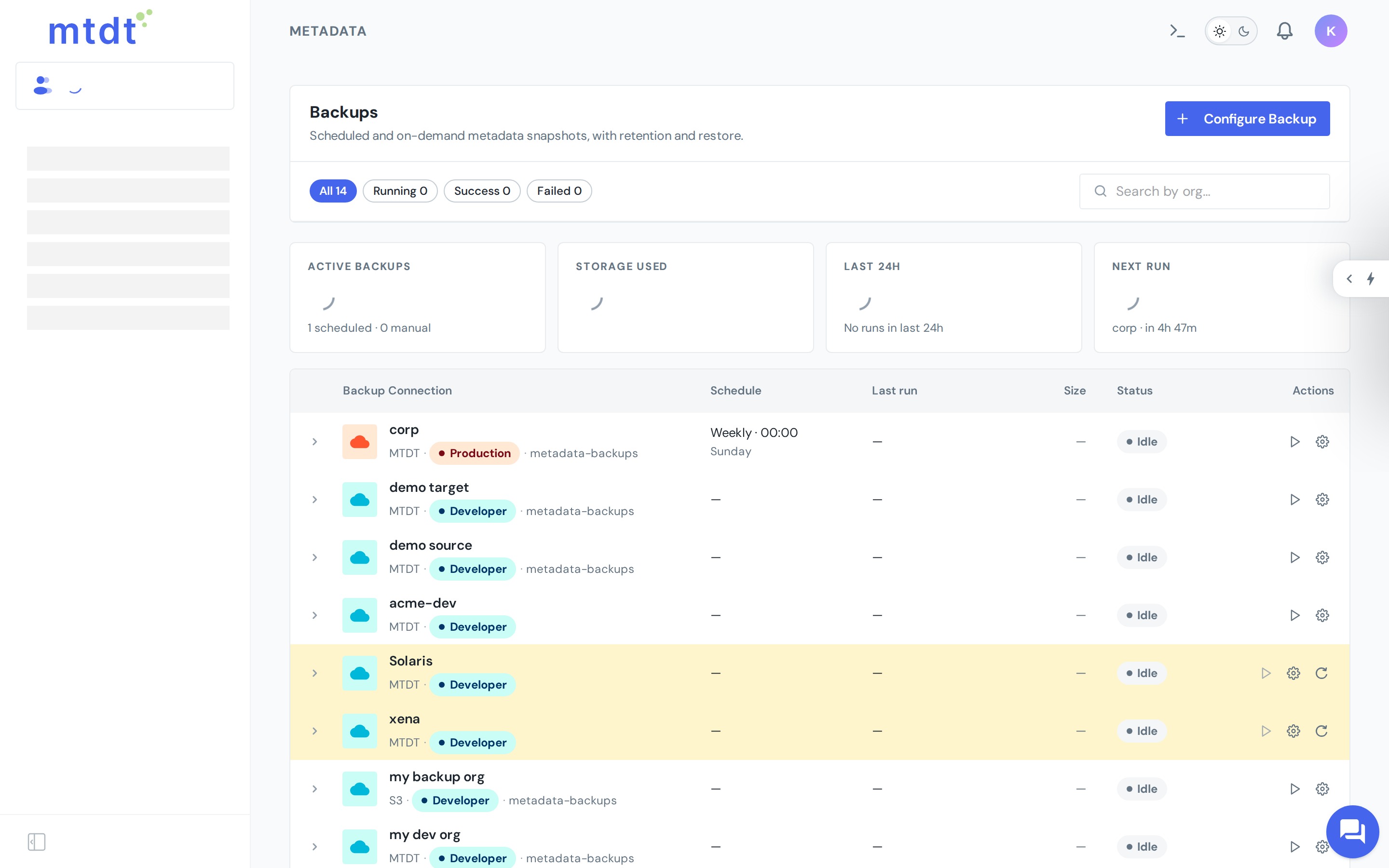
The fix is to snapshot the sandbox's metadata before you refresh, then restore it after. mtdt.io backs up a sandbox's metadata to your own storage, so once the refresh wipes your customizations you restore the unreleased work in one step instead of rebuilding it by hand. And because the refreshed sandbox is effectively a new org instance, reconnect it in mtdt so your deployments keep pointing at the right place.
7. Test and write it down
- Run your regression tests against the refreshed environment before you hand it back.
- Keep the checklist. Every org has its own integrations and quirks — turn the steps above into a team document, give each area an owner, and add to it every refresh.
FAQ
What does a Salesforce sandbox refresh actually change?
A refresh rebuilds the sandbox from its production source org. It deactivates users and appends .invalid to their emails, resets email deliverability to System email only, deactivates automation (scheduled Apex, flows, workflow rules), deletes connected apps, drops runtime history like AsyncApexJob records, copies over production data on full and partial copies, and reverts all metadata to match the source.
What should I do first after a Salesforce sandbox refresh? Stop the sandbox from emailing real people. Keep email deliverability on System email only until data is masked, and mask PII (emails, phone numbers, names, financial fields) on full and partial copies before anyone logs in — this is also a GDPR/HIPAA/CCPA obligation, since production data now sits in a lower-trust environment.
Why do my flows and scheduled Apex stop working after a refresh? Salesforce deactivates automation on refresh so it doesn't fire against fresh data. Flows come back Inactive, scheduled Apex classes don't auto-resume (the schedule definitions survive but the schedules don't), and workflow rules and process builders need to be re-enabled manually.
Does a sandbox refresh wipe unreleased work? Yes. A refresh reverts the sandbox's metadata to match its production source, so any in-progress configuration that lived only in that sandbox — fields, flows, layouts, undeployed Apex — is gone with no undo. The fix is to snapshot the sandbox's metadata before refreshing, then restore it after.
How does mtdt.io help with a sandbox refresh? mtdt.io backs up a sandbox's metadata to your own storage before a refresh, so once the refresh wipes your customizations, you restore the unreleased work in one step instead of rebuilding it by hand. Since the refreshed sandbox is effectively a new org instance, you also reconnect it in mtdt so deployments keep pointing at the right place.
Refresh without losing your work
Back up your sandbox metadata before the next refresh — and restore your unreleased work in one step after.
Log in to mtdt.io and back up your sandboxes.
Related: Recover a Sandbox After a Refresh · Salesforce Source Tracking · Disaster Recovery Playbook
Was this page helpful?
Let us know how we did