Deployment Approvals
Deployment approvals let your team require a reviewer's sign-off before a deployment runs — role-based separation of duties, with extra protection for your most important orgs.
Approvals rely on team roles, members, and reviewers. They apply only when you work in a team (Team plan), not in a personal workspace.
Set up roles
In Team Settings → Roles & permissions, each role carries per-action deployment permissions:
| Permission | What it allows |
|---|---|
| Deploy | Run a deployment directly. |
| Deploy Important | Deploy to orgs marked important (e.g. production). |
| Request Approve | Submit a deployment for someone else to approve. |
| Approve | Approve or reject a requested deployment. |
| Validate / View | Validate-only deploys / read access. |
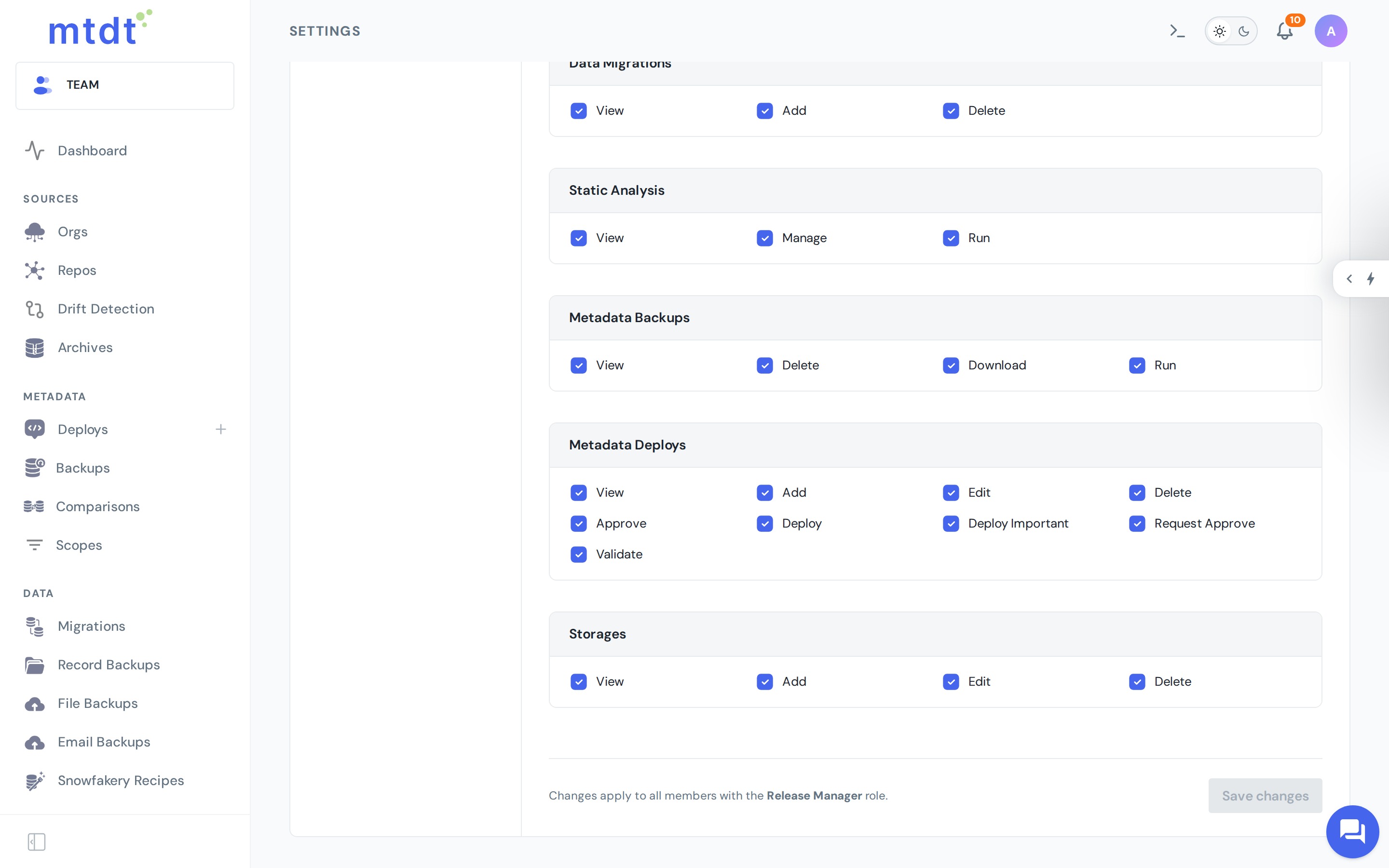
Assign roles to members under Team Settings → Members.
How the flow works
The deploy screen adapts to the user's permissions:
- A member who can deploy directly sees Deploy.
- A member who can't deploy directly but can request approval sees Request Approval. Submitting moves the deployment to Pending Approval instead of running it.
- A member with Approve opens the pending deployment and either approves it (it then deploys) or rejects it.
Approvers are notified when a request comes in (Slack, email, or your connected team-space), and every request/approval/rejection is recorded in Audit and Logs.
Protect important orgs
Mark an org as important (in its org settings) to require the separate Deploy Important permission for deploys to it. This lets people deploy freely to sandboxes while still forcing a review for production.
Best practices
- Give most members Deploy but reserve Deploy Important for senior reviewers.
- Keep the approver group small — a Release Manager role works well.
- Enable notifications so approvals don't become a bottleneck.
- Combine with pre-deployment checks so reviewers approve changes the checks have already vetted.
For the why and when, see Salesforce deployment approvals.