Managing Metadata Rollbacks
Even a well-reviewed deployment can have unintended effects in production. mtdt.io lets you undo one by restoring the target org to exactly how it looked before the deployment ran.
How rollback works
A rollback is a redeployment of a rollback point — a snapshot of the target org's metadata captured automatically, immediately before your deployment changed it.
- When you start a deployment, enable the Metadata Backup option (the rollback point).
- mtdt.io snapshots the components being changed on the target org before applying your deployment.
- If you later need to undo, open that deployment and choose Rollback. mtdt redeploys the captured snapshot, returning the affected components to their prior state.
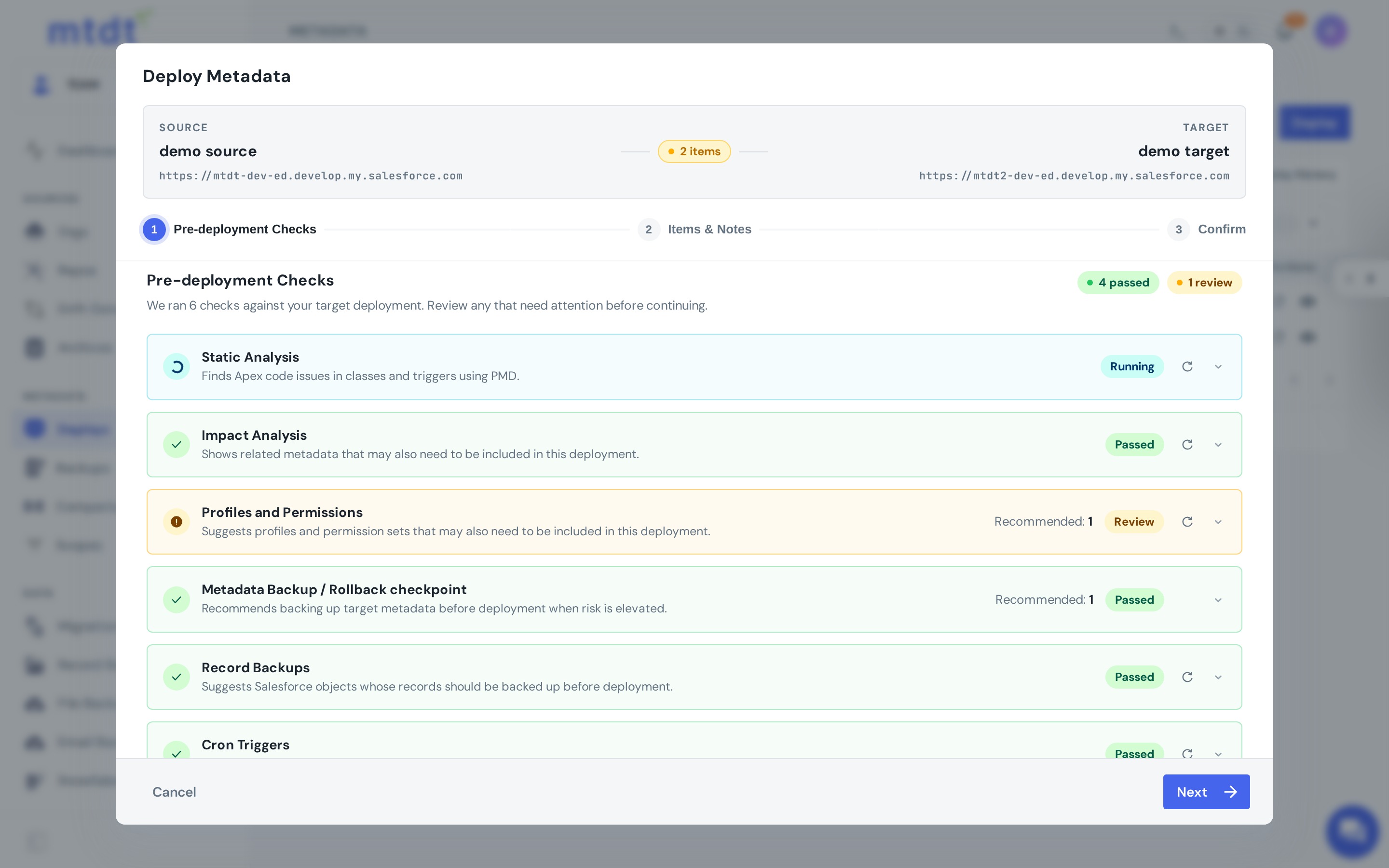
Because the rollback point is the org's real pre-deploy state, the revert is precise — it restores what was actually there, not a guess.
Performing a rollback
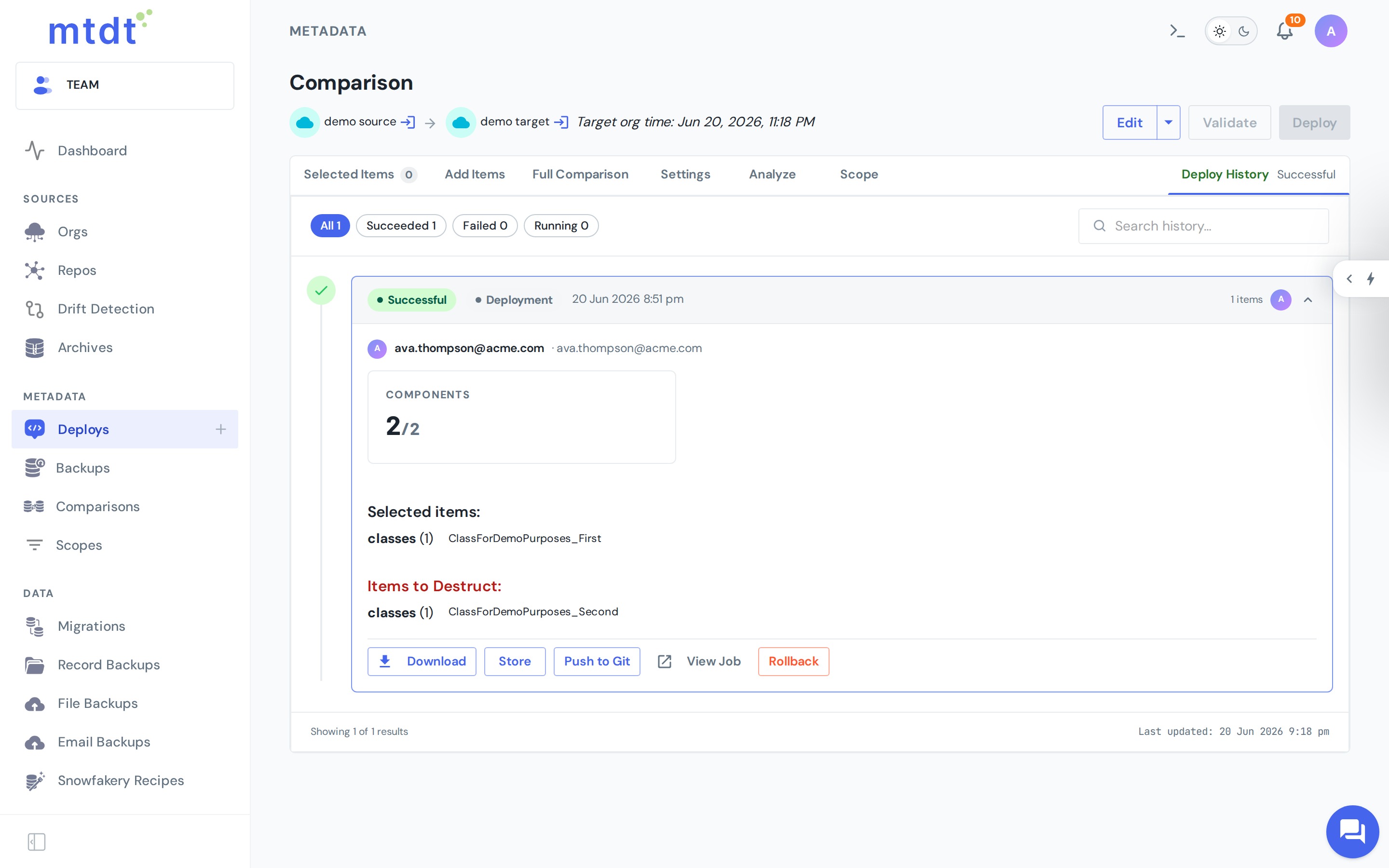
- Open the deployment from Deploys.
- Choose Rollback.
- Review what will be restored, then confirm. mtdt.io runs the revert as a normal deployment, with the same live status and history.
It warns you if the org changed since the deploy
A rollback restores the snapshot taken before your deployment. If another deployment has landed on the target org in the meantime, that older snapshot can quietly reset whatever the later deployment changed — leaving the org partially overwritten and inconsistent.
So before a rollback runs, mtdt.io checks whether anything reached the target org after the deployment you're undoing — and it doesn't just look at its own history. mtdt reads the org's own deployment record (the Salesforce DeployRequest log), which captures every metadata deployment on the org regardless of who started it: a change set, an SFDX/sf project deploy, Workbench, the Ant tool, another DevOps product, or mtdt itself. Any completed deploy that landed after yours counts.
If it finds one, the rollback dialog shows a warning, and you have to acknowledge it before the rollback can start:
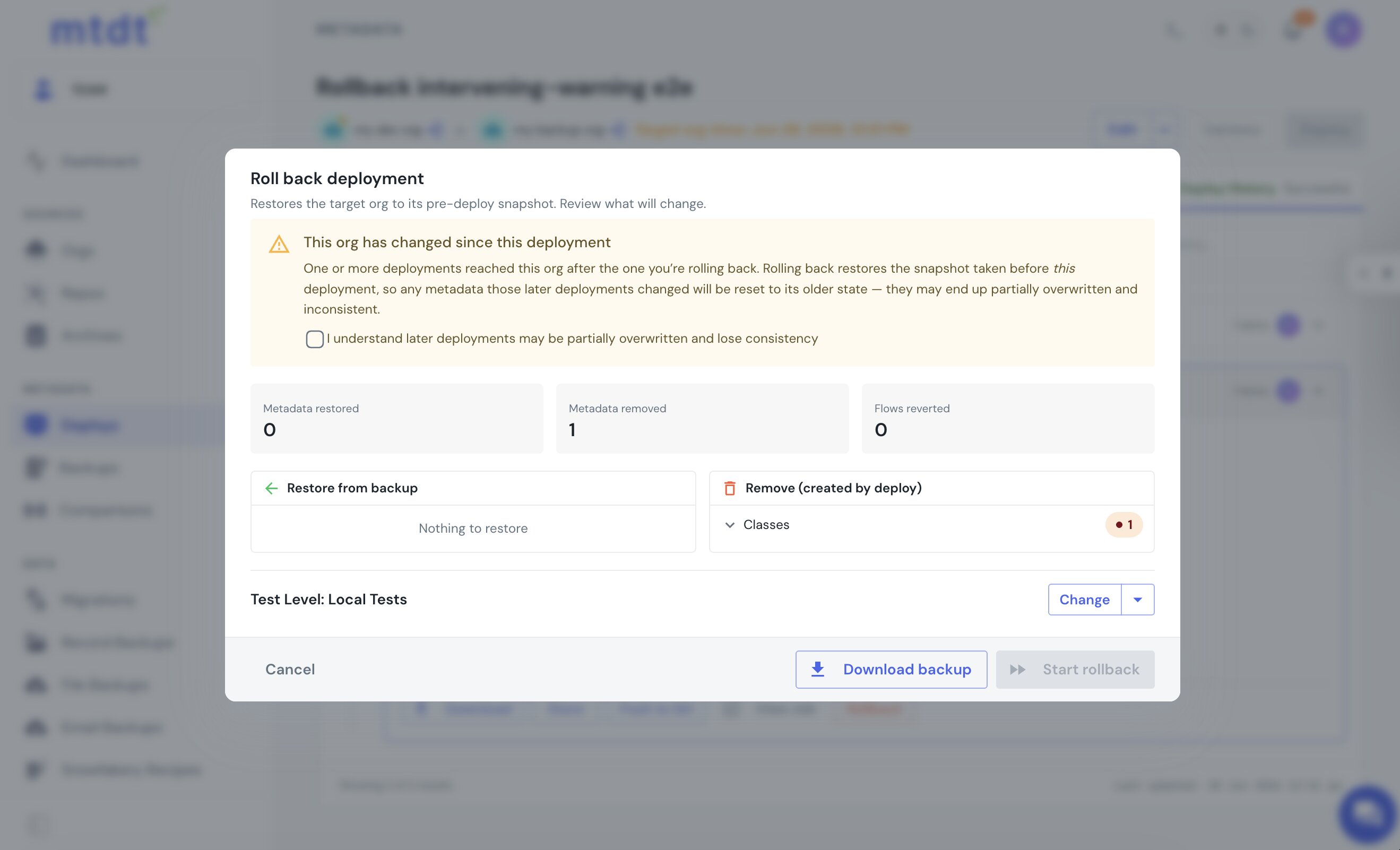
The check is best-effort and never blocks the preview — if the org's deploy history can't be read for any reason, mtdt proceeds without the warning rather than holding up your rollback.
Important: capture the point first
Rollback is only available for deployments where a rollback point was captured. If the Metadata Backup option was off when the deployment ran, there's nothing to restore from, and the Rollback action is unavailable for that deployment.
What rollback does and doesn't cover
- Covers the metadata components included in the original deployment.
- Does not restore data records, or changes made to the org by other deployments or admins after the original deploy. For records, see Backing Up Salesforce Data Records.
Best practices
- Always enable the rollback point for production deployments. It costs a snapshot and buys you a one-click undo.
- Roll back sooner rather than later. The longer you wait, the more likely other changes have landed on top, narrowing what a clean revert can safely restore.
- Pair rollback with approvals so high-impact deployments are both reviewed and reversible.