Using Diffs to Compare Metadata
Before you deploy — or just to understand how two environments differ — mtdt.io can compare metadata side by side and show you exactly what changed.
What you can compare
- Org ↔ Org — see how a sandbox differs from production.
- Branch ↔ Org — compare your source-of-truth branch against a live org.
- Archive / backup ↔ Org — compare a saved snapshot against current state.
Running a comparison
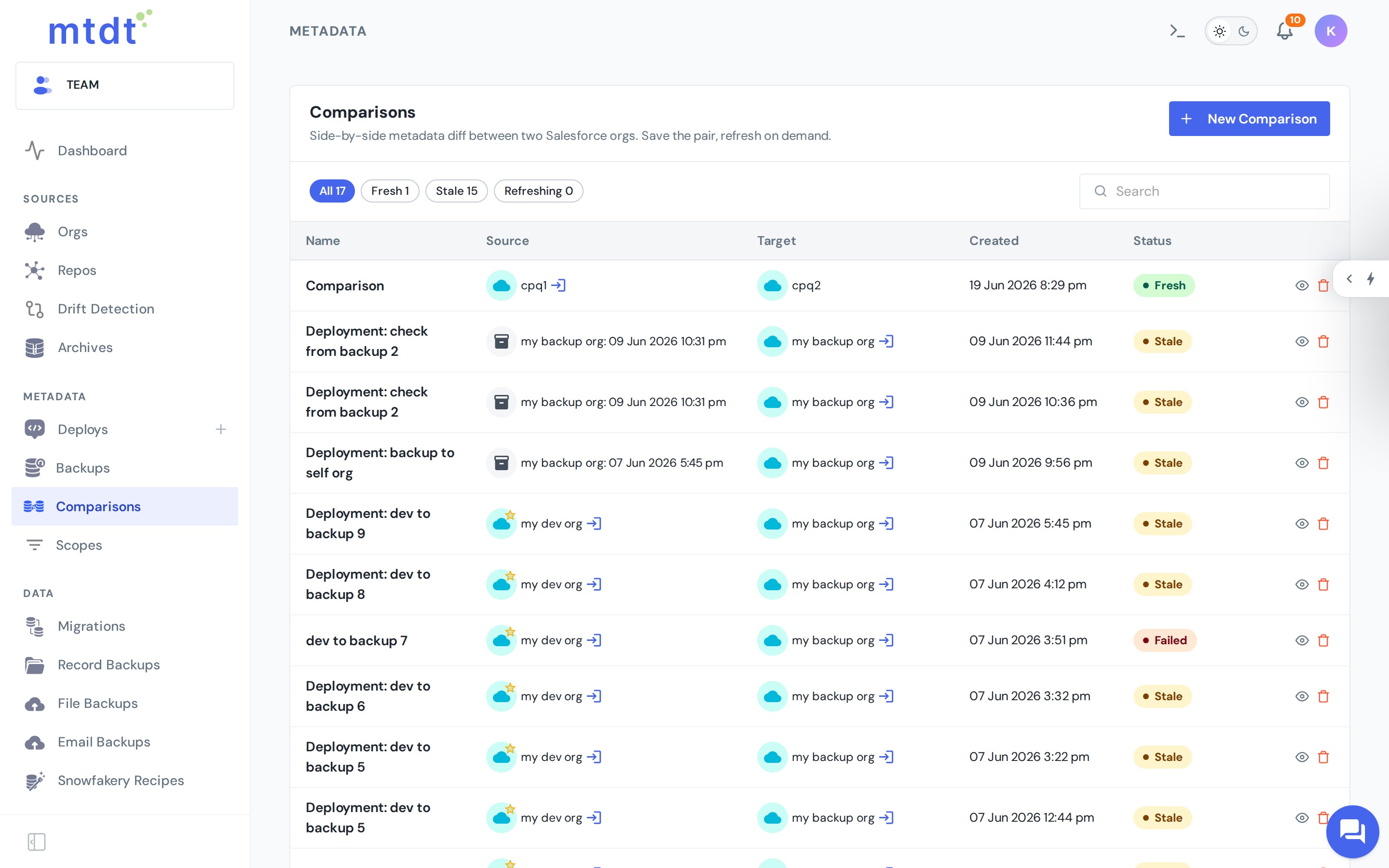
- Open Comparisons and choose your two sides (source and target).
- Select the metadata types you care about, or compare broadly.
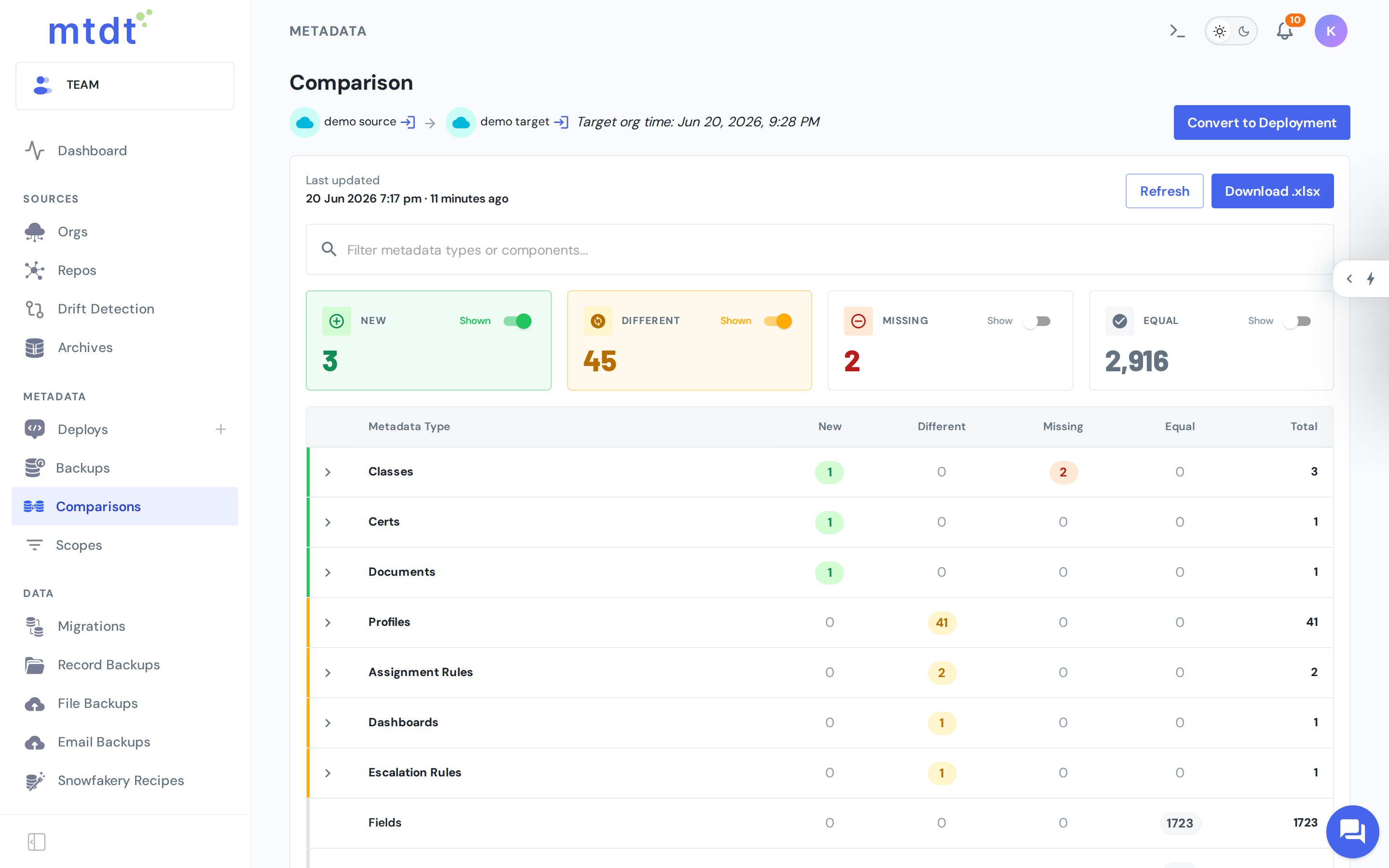
- mtdt.io retrieves both sides, normalizes them, and lists every component as added, removed, changed, or identical.
Because both sides are normalized first, cosmetic noise — element ordering and whitespace that Salesforce loves to shuffle — doesn't show up as a false difference. You see real changes only.
Reading a diff
- File-level diff — a side-by-side view of the component's XML, with changed lines highlighted.
- Structured (table) view — for supported types like fields, layouts, record types, and flexipages, mtdt.io breaks the change down property by property, so you can read what changed without parsing raw XML.
From comparison to deployment
A comparison is the starting point for a deployment: select the differences you want to promote and carry them straight into a deploy, so you move only what actually changed.
Best practices
- Compare before every cross-environment deploy so there are no surprises in production.
- Narrow the metadata types to the area you're working on for a faster, more focused comparison.
- Toggle Equal off to cut the noise and focus only on what actually differs.