Detect Target-Org Changes Before a Deploy Overwrites Them
While you compare two orgs and prepare a deployment, the target org keeps living — another admin or developer can edit the very components you're about to push. Deploy anyway and you silently overwrite their work. mtdt.io's Target Org Changes check catches this: before you deploy, it compares each selected item against the target org's current state and flags anything that changed there since your snapshot, so an overwrite becomes a decision instead of an accident.
What it checks
Target Org Changes runs automatically as one of the pre-deployment checks when you open a deployment, and re-runs whenever you change your selection. For every item you've selected — including items marked for deletion — it reads the live last-modified timestamp from the target org and compares it to the timestamp captured when you last retrieved or compared that item. If the target's timestamp is newer, someone changed that component after your snapshot.
When it finds something, the card shows a Conflicts: N badge, switches to Review, and auto-expands so you see the findings without hunting for them:
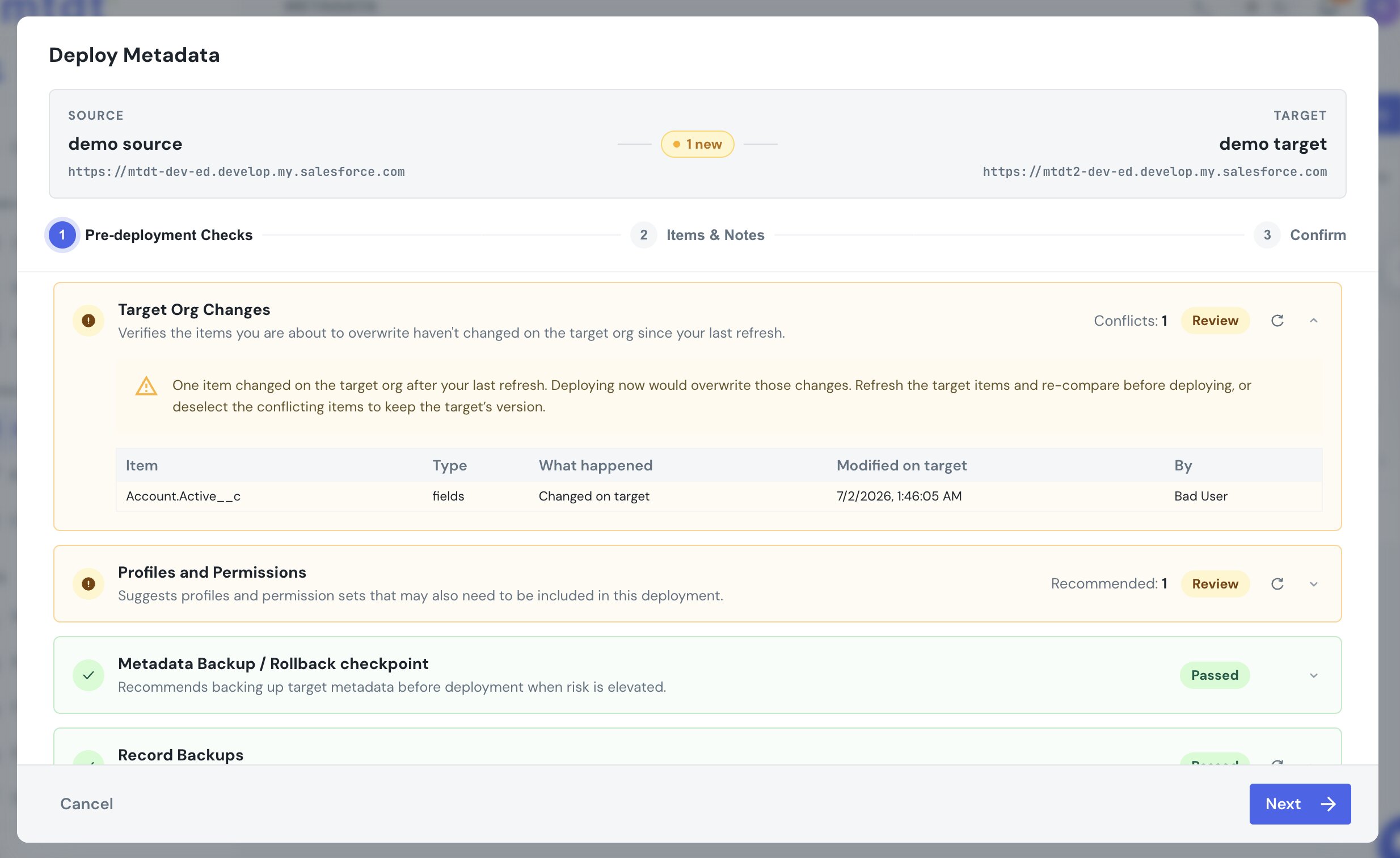
Each row tells you exactly what happened:
- Changed on target — the component was edited on the target after your snapshot. Hover the date to see your snapshot's timestamp beside the target's current one.
- No longer on target — a component you're about to deploy (or delete) has been removed from the target.
- Created on target — an item you're adding as new already exists on the target, created by someone else.
The table names the item, type, what happened, when it was modified on the target, and who modified it — the author and time come straight from Salesforce's live metadata, so you know exactly whose change you'd be stepping on.
How to resolve a conflict
You have two clean options:
- Refresh and re-compare the target items so your snapshot reflects the current target state, then review the real diff and decide what to deploy.
- Deselect the conflicting items to keep the target's version and deploy everything else.
The check is informational — it never blocks the deploy. It turns a silent overwrite into an explicit choice.
What can't be verified — and why
The check depends on Salesforce exposing a trustworthy last-modified timestamp for a component, and for some metadata types Salesforce doesn't move that timestamp reliably. Rather than show a false "no changes" result, mtdt.io lists those types in a separate note with the reason it can't verify each one — and never gives them a green check. They include profiles, permission sets, Lightning web component and Aura bundles, custom objects, standard fields, and folder-based types. Items whose target metadata wasn't loaded for that type in this deployment are called out separately as having no snapshot to compare against.
This is a limitation in how Salesforce reports change timestamps, not something a deployment tool can engineer around — so mtdt.io shows you the boundary instead of hiding it.
FAQ
How does mtdt.io know a component changed on the target org? It reads the component's current last-modified timestamp from the target org's live metadata and compares it to the timestamp captured when you last retrieved or compared that item. A newer timestamp on the target means it was edited after your snapshot.
Will this block my deployment? No. Target Org Changes is informational: it flags conflicts and explains them, but you decide whether to refresh and re-compare, deselect the conflicting items, or deploy anyway.
Why are some items marked as "can't be verified"? Salesforce doesn't expose a reliable change timestamp for certain metadata types — profiles, permission sets, LWC/Aura bundles, custom objects, standard fields, and folder-based types. Rather than report a misleading "no changes", mtdt.io lists those types with the reason it can't verify them.
Related
- Pre-Deployment Checks — the full set of checks mtdt.io runs before a deploy.
- Comparing Metadata with Diffs — how the source↔target snapshot is built.
- Metadata Rollback — restore the target if a deploy still goes wrong.