Backing Up Salesforce Files
Metadata and record backups don't cover your Files — the attachments, uploaded documents, and images stored as Salesforce Content Versions. mtdt.io backs those up to your own S3-compatible storage, so every layer of your org is protected.
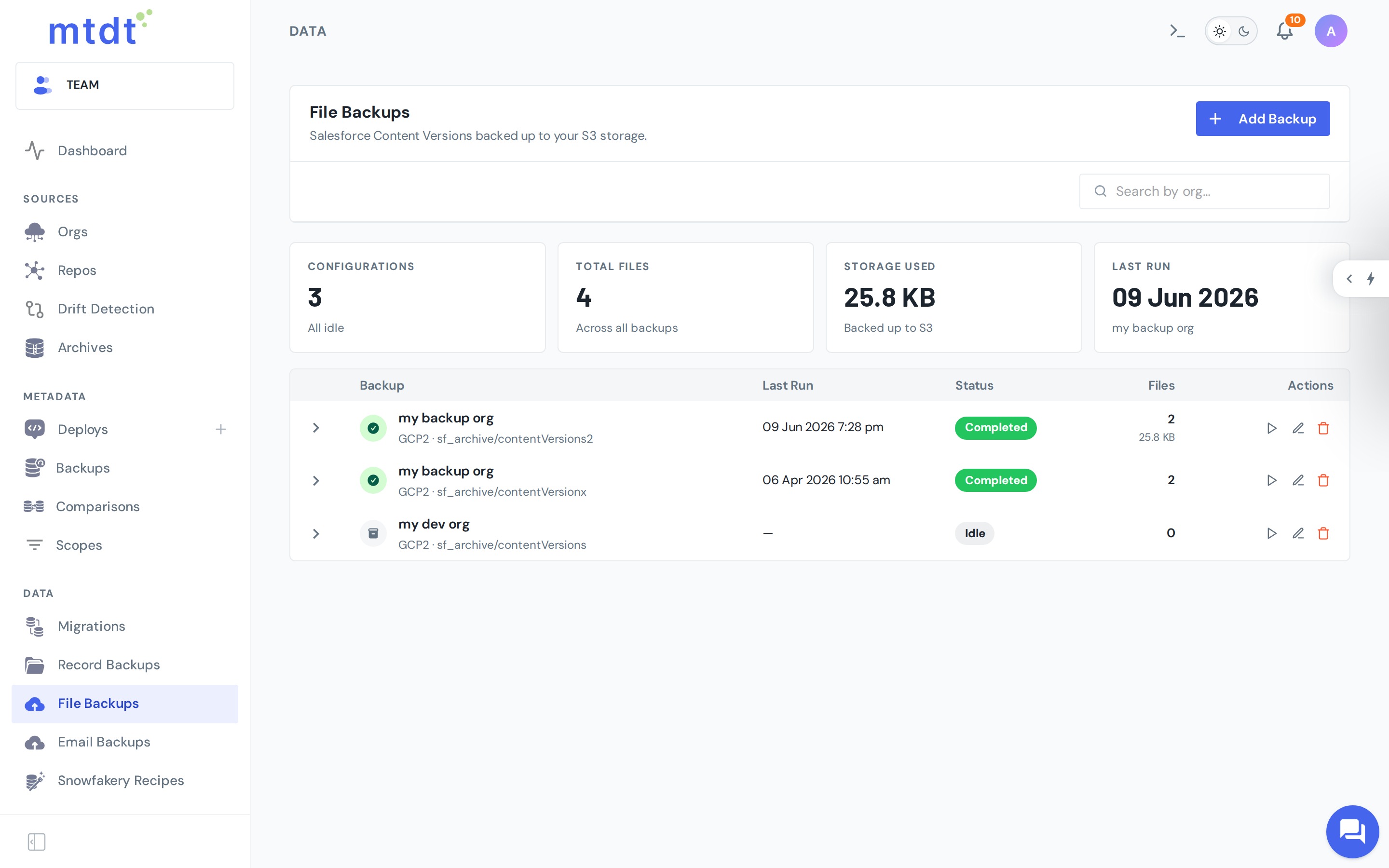
You manage file backups under File Backups.
How it works
- Connect an S3-compatible bucket under Storages (AWS S3, Google Cloud Storage, or any S3-compatible provider).
- Under File Backups, choose Add Backup, pick the Salesforce org (source) and the S3 storage (destination).
- Run it on demand, or let it run on a schedule. mtdt.io streams the org's Content Versions into your bucket.
Each configuration shows how many files are captured, the storage they use, and when it last ran.
Why back up files
- Files are usually the largest, least-protected data in an org — and Salesforce file storage is limited and expensive.
- A metadata or record backup won't bring a deleted attachment back; a file backup will.
- The copy lives in your own storage, in your region and under your access controls — no lock-in.
Best practices
- Back up production first — that's where losing a file hurts most.
- Use your own S3 bucket so you own both the copy and the cost.
- Schedule it so new files are captured continuously.
- Pair with metadata backup and record backups for complete coverage.
For the bigger picture, see Salesforce file backup to your own S3.