Connecting S3-Compatible Storage
mtdt.io stores backups in storage you own. Object storage — your own S3-compatible bucket — is where metadata backups, archives, file backups, and CSV data backups land. You connect it once under Storages, and it's available to every feature that writes backups.
You manage all connections under Settings → Storages.
Supported providers
When you add a storage, you choose a provider. All object-storage providers use the S3-compatible protocol:
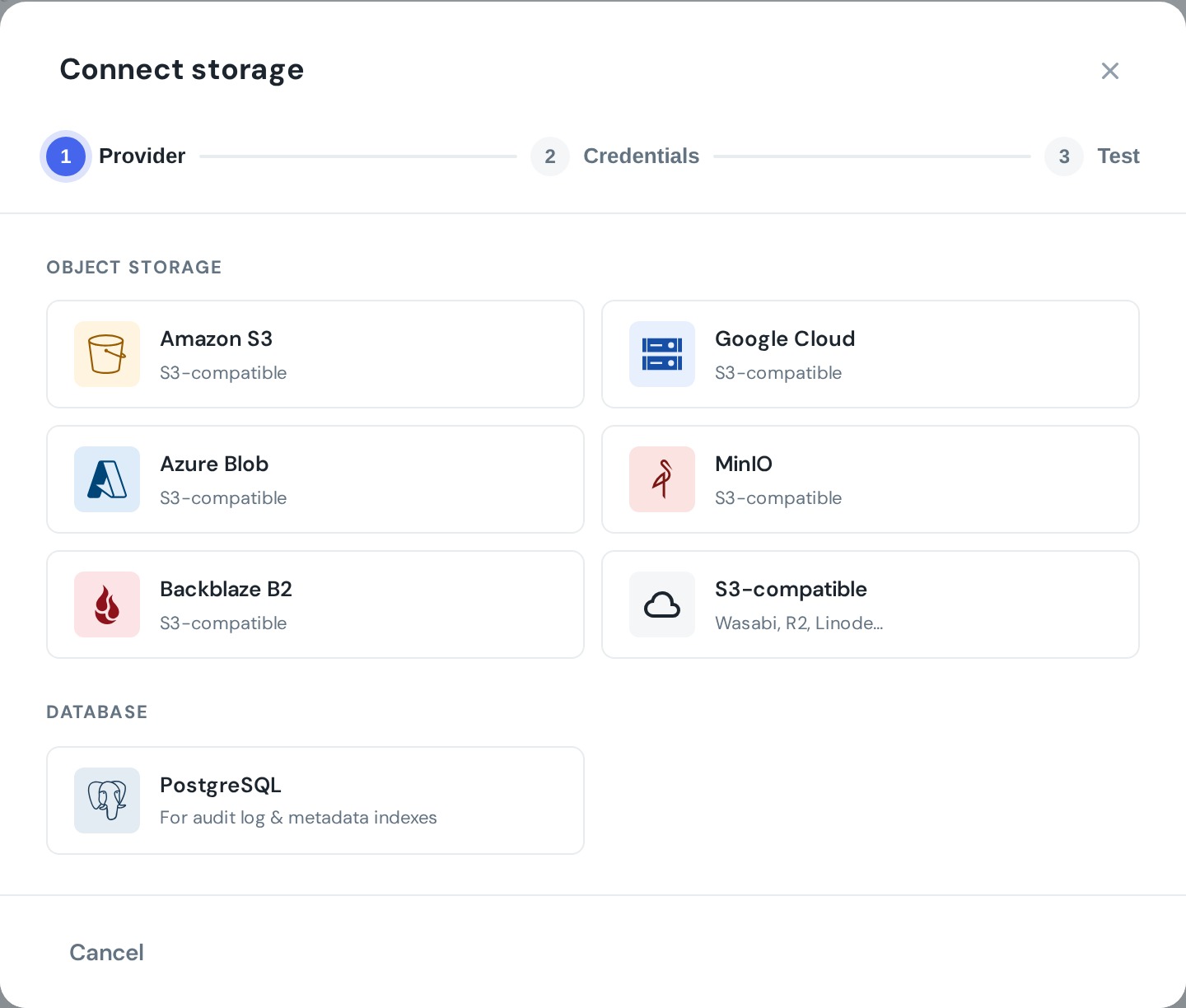
- Amazon S3
- Google Cloud (Cloud Storage)
- Azure Blob
- MinIO
- Backblaze B2
- S3-compatible — anything else that speaks the S3 API (Wasabi, Cloudflare R2, Linode, and others)
Connect a bucket
- Go to Settings → Storages and choose Add storage.
- Pick your provider (e.g. Amazon S3).
- Enter the credentials:
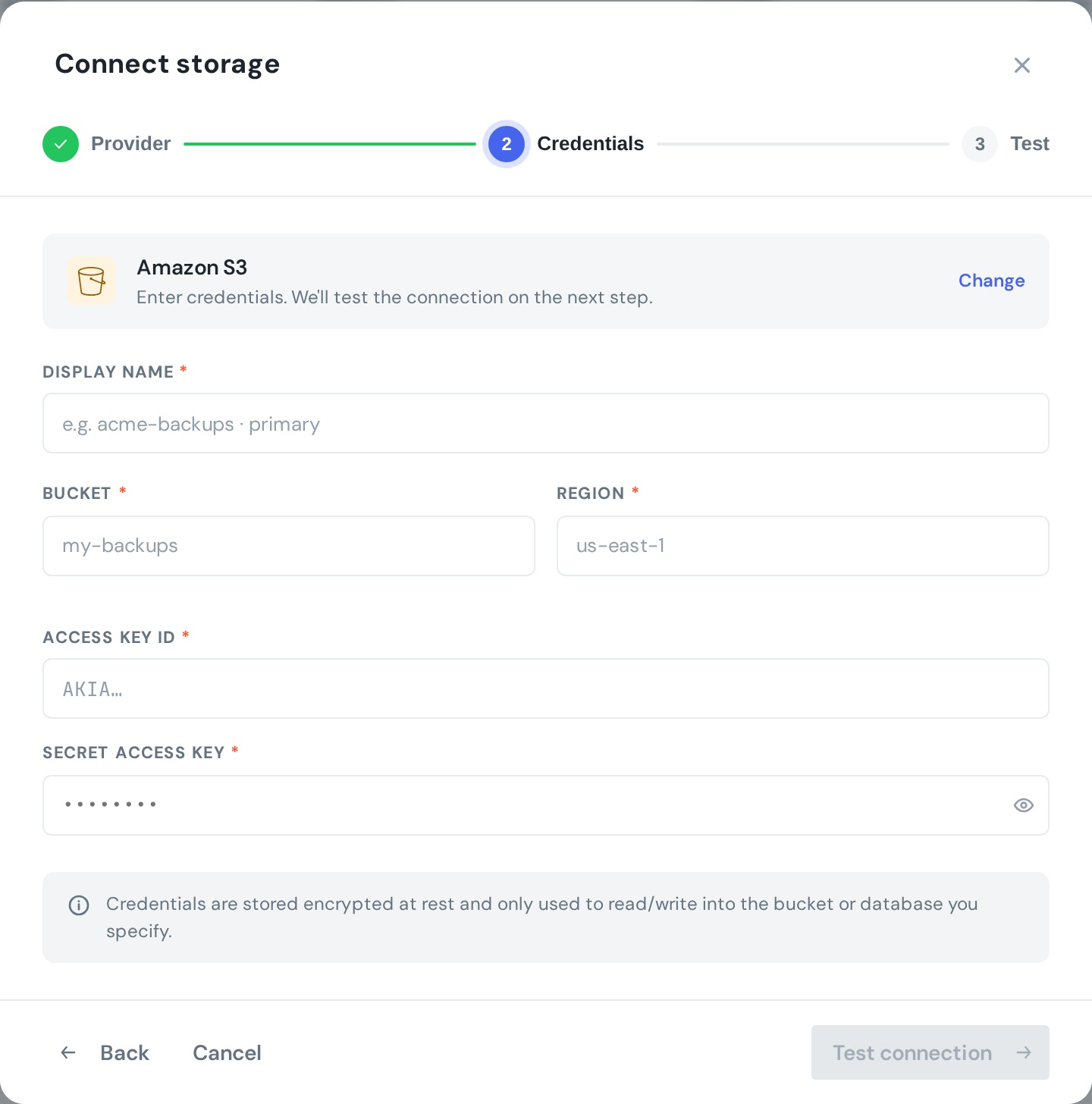
- Display name — a label you'll recognise (e.g.
acme-backups · primary). - Bucket — the bucket name.
- Region — e.g.
us-east-1. - Access key ID and Secret access key.
- For non-AWS S3-compatible providers, you'll also supply the endpoint.
- Choose Test connection. mtdt.io verifies it can read and write, then saves the storage.
Credentials are stored encrypted at rest and used only to read and write the bucket you specify.
On Amazon S3 you can also have every backup object encrypted with your own AWS KMS key. See Encrypting Backups with Your Own Key.
Managing storages
Each storage shows its connection status, and you can test, edit, or delete it from the list. Deleting a storage stops any backups that use it, so reassign them first.
What uses object storage
- Metadata backups and Archives
- File backups (Salesforce Content Versions)
- CSV data backups
- The attachment/body payloads of email backups
To connect a database instead, see Connecting a PostgreSQL Database. For the bigger picture, see bring-your-own storage.