Encrypting Backups with Your Own Key
When your backups go to your own Amazon S3 bucket, mtdt.io can encrypt every object it writes with an AWS KMS key that you own and control. Disable or revoke the key, and the backups can no longer be read by anyone, mtdt.io included.
This page covers Amazon S3. For Azure Blob and Google Cloud, see Azure and Google Cloud below.
Before you start
You need:
- an S3 bucket;
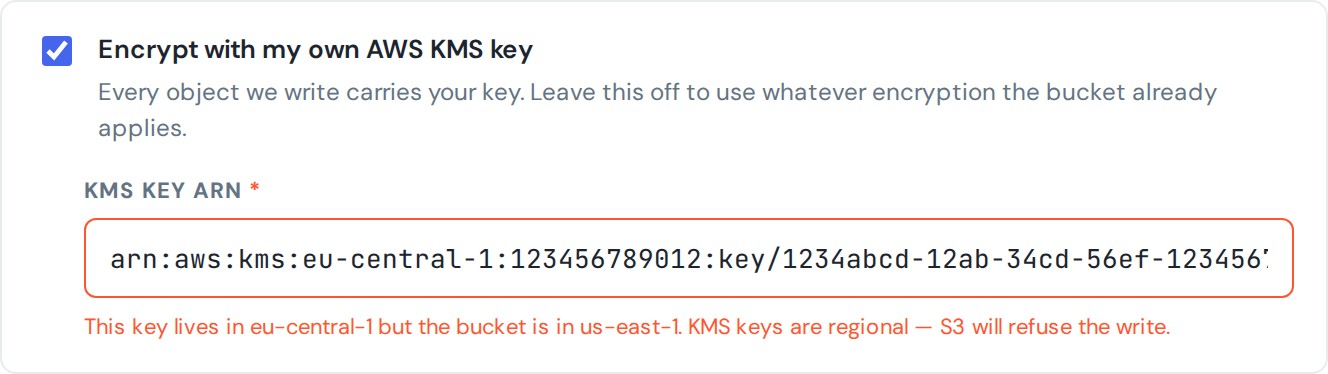
- a symmetric customer-managed KMS key ("Encrypt and decrypt") in the same region as the bucket. KMS keys are regional, so S3 refuses a write that names a key from another region;
- an IAM user with an access key that mtdt.io will use, allowed to write to the bucket and to use the key:
{
  "Version": "2012-10-17",
  "Statement": [
    { "Effect": "Allow",
      "Action": ["s3:PutObject", "s3:GetObject", "s3:DeleteObject"],
      "Resource": "arn:aws:s3:::BUCKET/*" },
    { "Effect": "Allow",
      "Action": ["s3:ListBucket", "s3:GetBucketLocation"],
      "Resource": "arn:aws:s3:::BUCKET" },
    { "Effect": "Allow",
      "Action": ["kms:GenerateDataKey", "kms:Encrypt", "kms:Decrypt", "kms:DescribeKey"],
      "Resource": "arn:aws:kms:REGION:ACCOUNT:key/KEY-ID" }
  ]
}
Replace BUCKET, REGION, ACCOUNT and KEY-ID with your values. mtdt.io needs kms:Decrypt to read the backups back when you restore or download them.
Turn on S3 Bucket Keys
In the bucket's Properties → Default encryption, enable Bucket Key. Without it, S3 calls KMS once for every object it writes and reads. A file backup writes one object per file, so a large one runs into your account's KMS request quota and starts failing, and every call is billed. With a bucket key, S3 makes up to 99% fewer KMS calls. It's a bucket setting only: nothing changes in mtdt.io.
Where to find the key ARN
In the AWS console, open Key Management Service → Customer managed keys, select your key, and copy its ARN. It looks like this:
arn:aws:kms:us-east-1:123456789012:key/1234abcd-12ab-34cd-56ef-1234567890ab
Use the key ARN, not an alias (alias/...) or the bare key ID. Multi-Region keys (key/mrk-...) work too.
Connect the bucket with your key
- Go to Settings → Storages, choose Add storage, and pick Amazon S3.
- Fill in the bucket details as usual. See Connecting S3-Compatible Storage.
- Tick Encrypt with my own AWS KMS key and paste the key ARN into KMS Key ARN.
- Choose Test connection. mtdt.io writes, reads and deletes a test object using your key, then saves the storage.
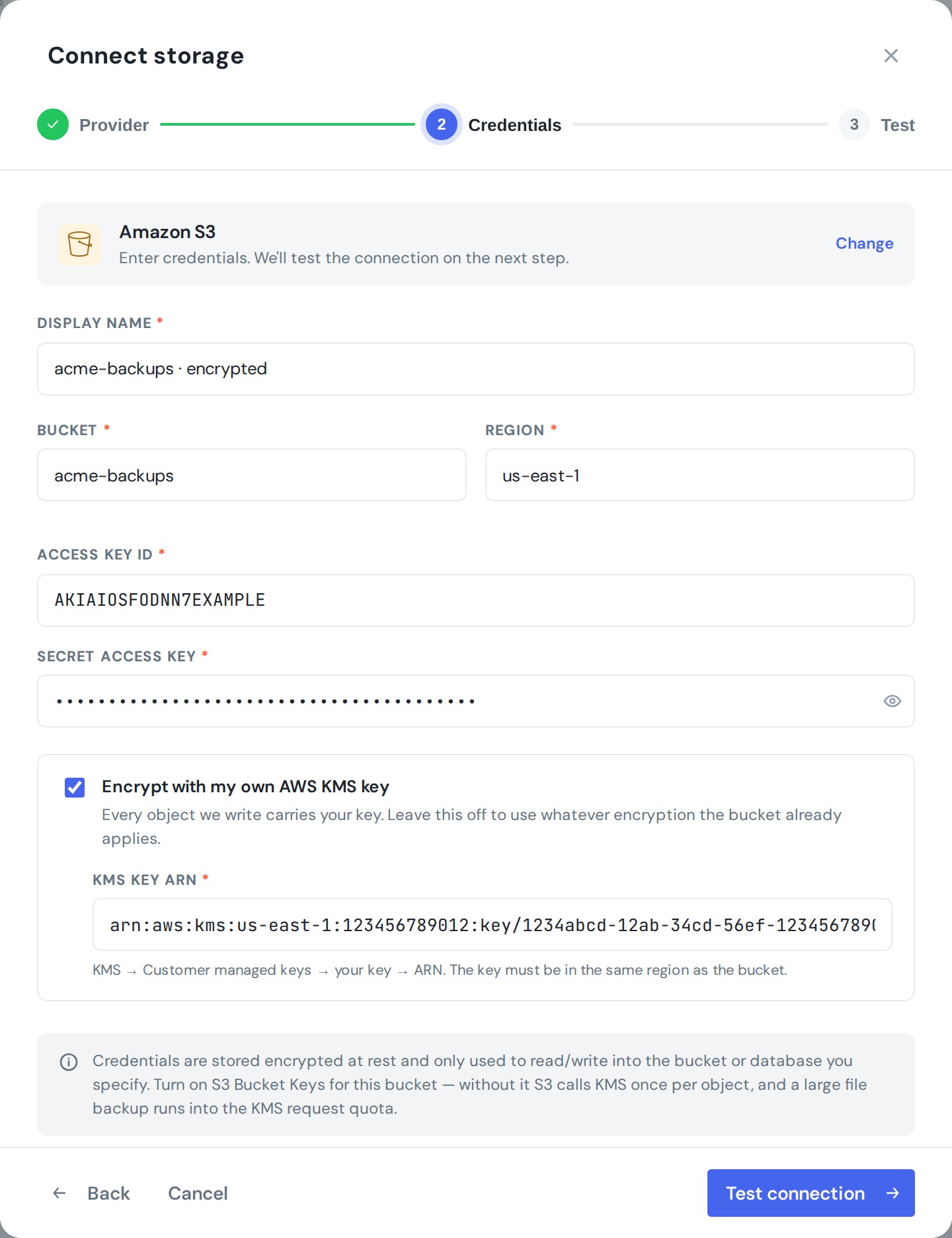
You can turn this on for a storage that's already connected: choose Edit on it, tick the box, add the ARN and save. Objects written before that keep the encryption they were written with.
The wizard checks the ARN before it lets you continue. It must be a full key ARN, and its region must match the bucket's:
Once saved, the storage shows Encrypted with your key and the last characters of the key ARN in the list:

Do I need the checkbox?
If your bucket's default encryption already uses your KMS key, S3 encrypts everything mtdt.io writes with that key, checkbox or not. Leaving the box unticked means mtdt.io uses whatever encryption the bucket applies.
You need the checkbox when the bucket policy requires every write to name the encryption key. Many company buckets have such a rule, and without the checkbox they refuse mtdt.io's writes. With it ticked, every write names your key and passes the policy.
If the key is disabled or revoked
Disabling the key, scheduling it for deletion, or taking away mtdt.io's permission to use it stops the backups to that storage:
- the next write is refused, and the storage is marked as blocked. In Storages it shows an error;
- everyone on the team gets a notification and an email: "The encryption key for this bucket is unavailable — disabled, deleted, or no longer granting us use of it.";
- metadata backups and file backups to this storage are cancelled until you fix it, instead of failing every run. CSV record backups that write there fail until the key is back;
- existing backups in the bucket can't be restored or downloaded while the key is unavailable, because S3 can't decrypt them.
mtdt.io doesn't treat this as a problem with your access key, so you don't have to rotate it.
To recover, re-enable the key or restore the permission, then choose Test on the storage or open it and save it again. When the check passes, the block is lifted and backups resume on their next run.
Azure and Google Cloud
You set customer-managed keys on the provider's side, and mtdt.io needs no settings for them. The checkbox appears only for Amazon S3.
- Azure Blob: configure customer-managed keys from Azure Key Vault on the storage account, under Encryption.
- Google Cloud Storage: set a default Cloud KMS key on the bucket (CMEK) and grant the Cloud Storage service agent permission to use the key.
mtdt.io writes as usual, and the provider encrypts each object with your key.