Connecting a PostgreSQL Database
Some mtdt.io features store data in a relational database you own — your own PostgreSQL. Record (data) backups and email backups write their records there, where they stay queryable. You connect the database once under Storages, alongside your object-storage buckets.
You manage all connections under Settings → Storages.
Bring your own Postgres
mtdt.io connects to any standard PostgreSQL database — there's no provider lock-in. That includes managed Postgres such as Neon, Supabase, AWS RDS, Azure Database for PostgreSQL, Google Cloud SQL, or a database you host yourself. The copy lives in your infrastructure, your region, under your access controls.
Connect a database
- Go to Settings → Storages and choose Add storage.
- Pick PostgreSQL under Database.
- Enter the connection details:
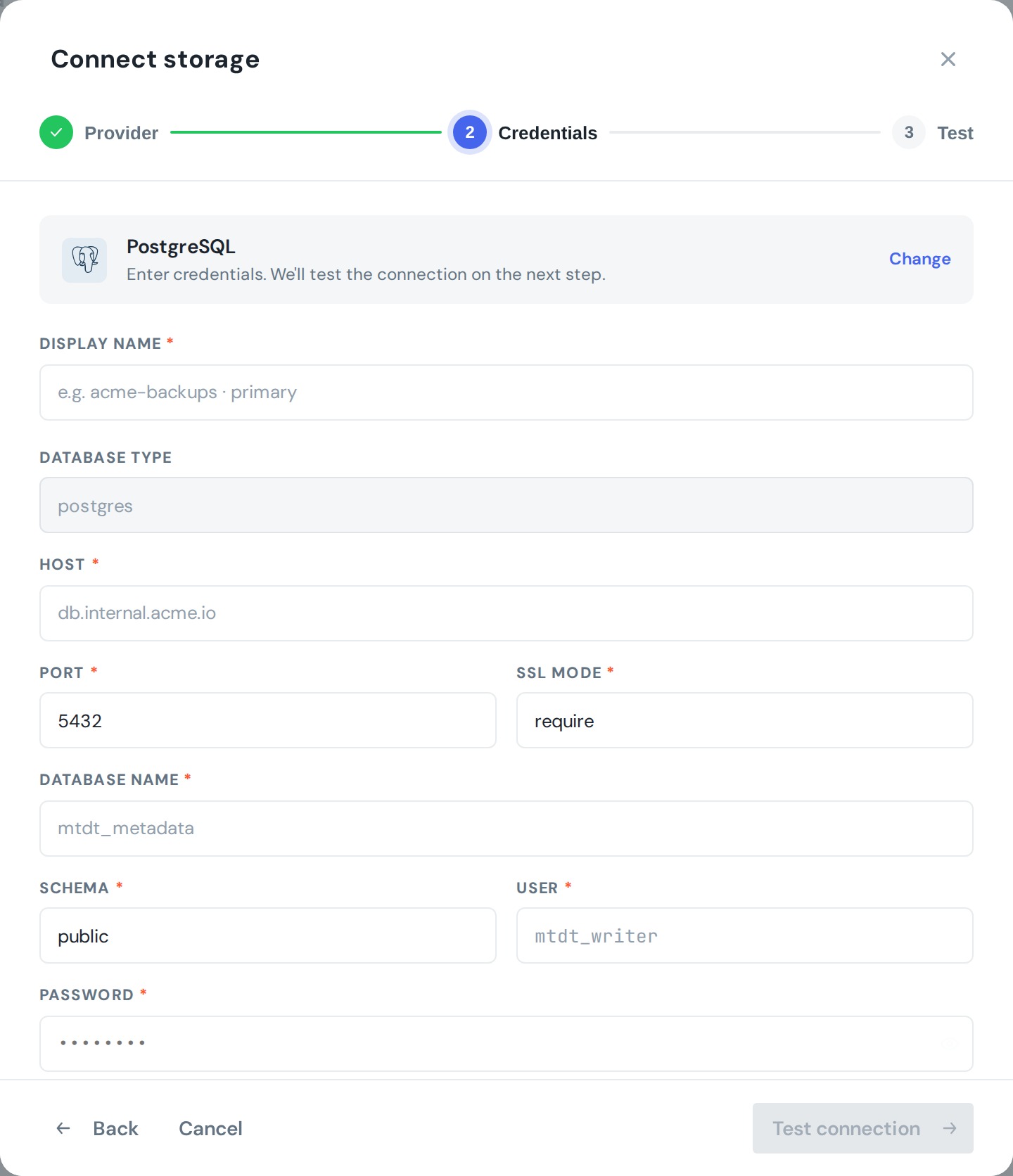
- Display name — a label you'll recognise (e.g.
acme-backups · primary). - Host and Port (default
5432). - SSL mode — e.g.
require. - Database name and Schema (e.g.
public). - User and Password.
- Choose Test connection. mtdt.io verifies it can connect, then saves the storage.
Credentials are stored encrypted at rest and used only to read and write the database you specify.
Managing storages
Each connection shows its status, and you can test, edit, or delete it from the list. Deleting a database connection stops any backups that use it.
What uses a database
- Record (data) backups to PostgreSQL
- Email backups (EmailMessage records)
To connect an object-storage bucket instead, see Connecting S3-Compatible Storage. For the bigger picture, see bring-your-own storage.