Monitoring a Salesforce Org: Setup Changes, Limits, Errors and Notifications
Org monitoring in mtdt.io keeps a running record of what happens in a connected Salesforce org: who changed what in Setup, how close the org is to its limits, and which background jobs, Flows and Apex code failed. It reads the org every 15 minutes (limits and Apex exception files every hour), shows the results on one page per org, and can notify your team in the app, by email, or in Slack and Microsoft Teams when something matches a rule you set up.
Why monitor an org
Deployments are only part of how an org changes. Admins edit Setup directly, integrations run as their own users, scheduled jobs fail at night, and limits creep up over days. Without monitoring you usually learn about these things from a user report or a failed deployment.
Org monitoring answers a few everyday questions:
- Who changed production outside a deployment? A hotfix made in Setup on Friday will be overwritten by the next deployment unless someone moves it into source control. The Changes tab shows such changes separately from the ones a deployment made.
- Is the org about to hit a limit? API requests, data and file storage, async Apex executions and the rest are sampled every hour, with a history for each limit.
- What failed in the background? Failed async Apex jobs, scheduled jobs in error, failed Flow interviews and unexpected Apex exceptions are collected in one list, with the deployments that changed the same component shortly before.
- Who needs to know right now? Notification rules send a message when a specific kind of change, error or limit level appears, so the right people hear about it without watching the page.
How it works
Open Orgs, expand an org and choose Monitoring. The page has three summary cards, a period switch (24 hours, 7, 30 or 90 days) and four tabs: Changes, Limits, Errors and Notifications.
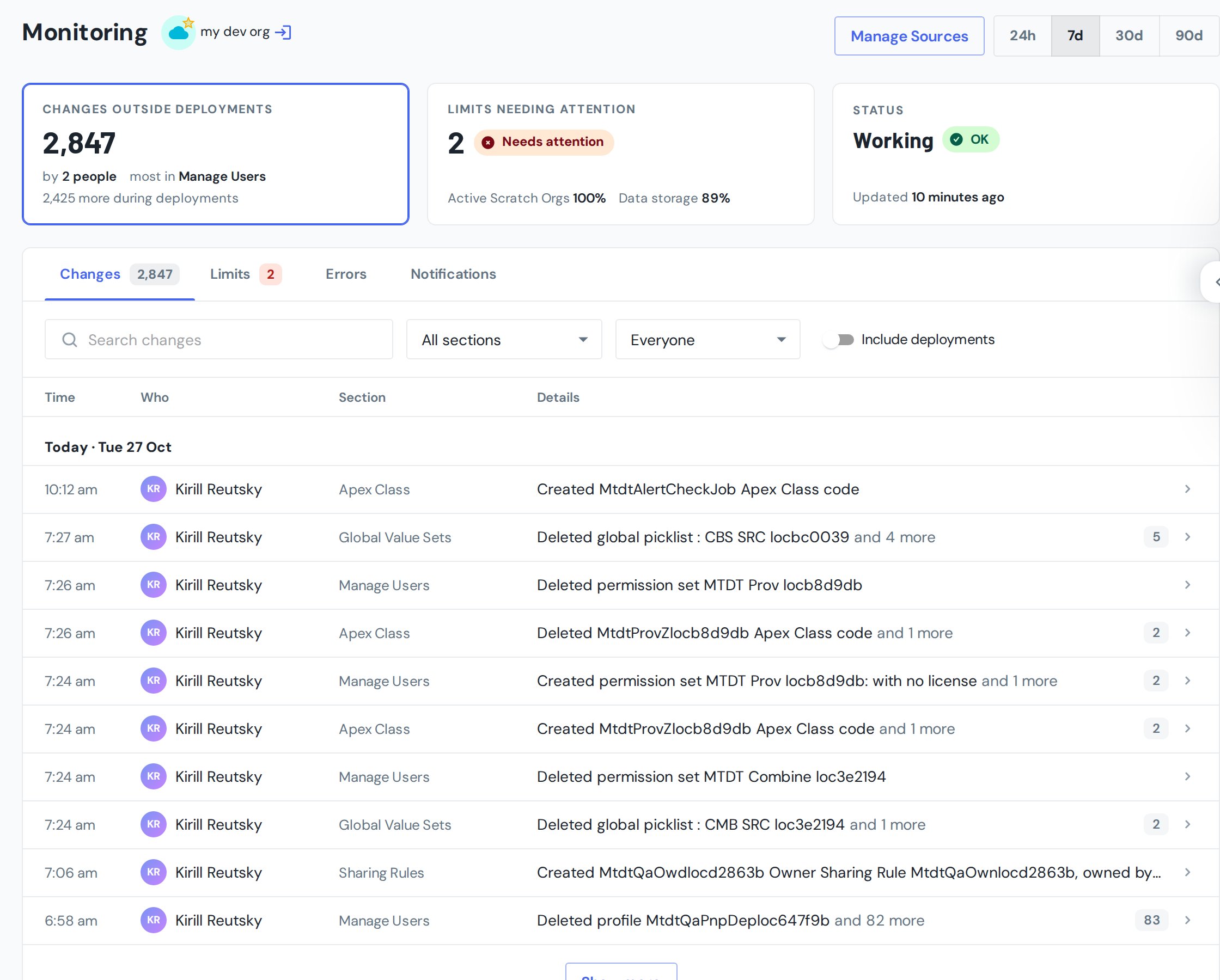
Choose what to collect
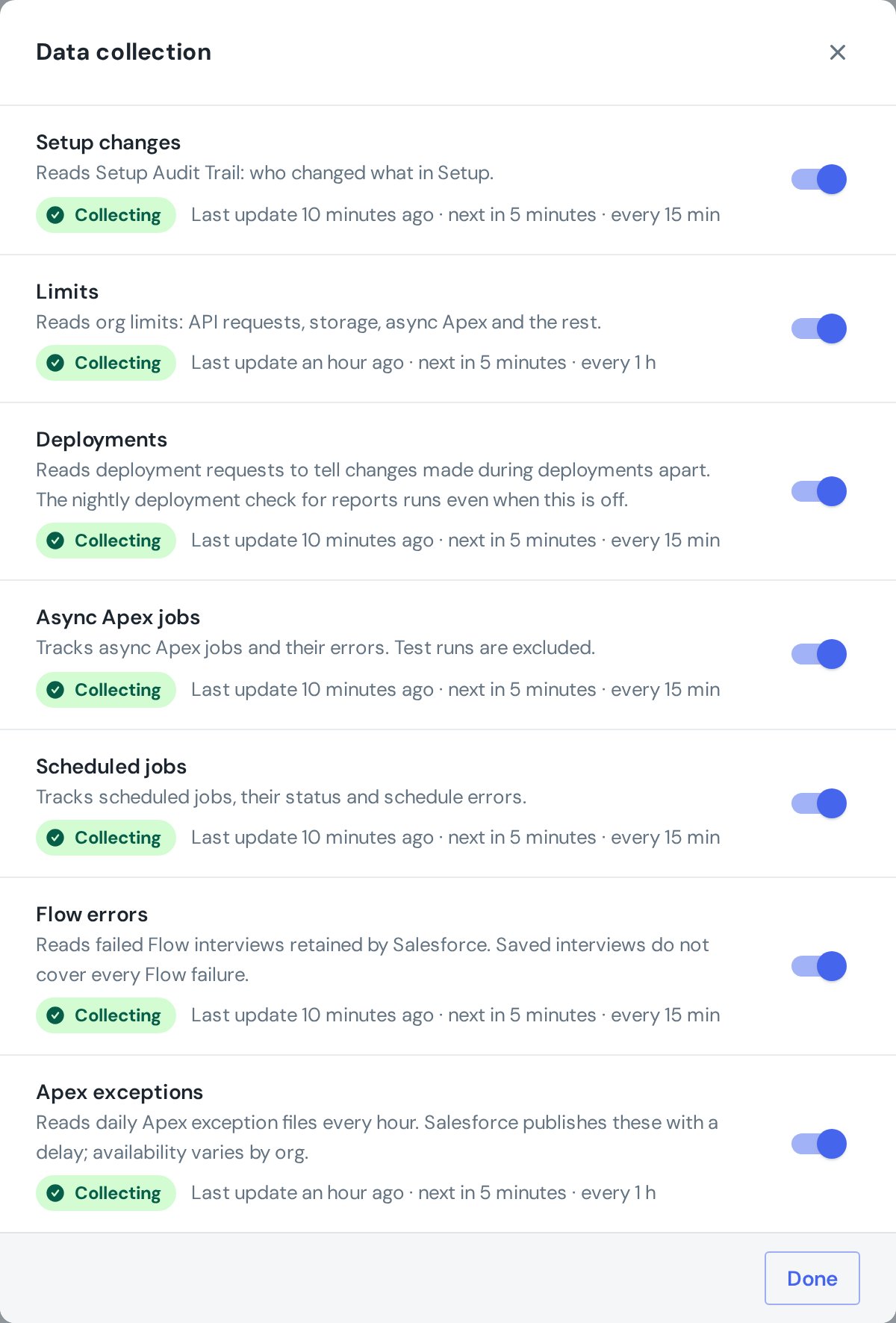
Nothing is collected until you turn it on. Manage Sources lists each kind of data separately, so you can collect Setup changes and limits on one org and errors on another:
| Source | What it reads | How often |
|---|---|---|
| Setup changes | Setup Audit Trail: who changed what in Setup | Every 15 minutes |
| Limits | Org limits: API requests, storage, async Apex and the rest | Every hour |
| Deployments | Deployment requests, used to tell changes made during deployments apart | Every 15 minutes |
| Async Apex jobs | Async Apex jobs and their errors; test runs are excluded | Every 15 minutes |
| Scheduled jobs | Scheduled jobs, their status and schedule errors | Every 15 minutes |
| Flow errors | Failed Flow interviews that Salesforce keeps | Every 15 minutes |
| Apex exceptions | Daily Apex exception files | Every hour |
Each source shows its status, when it last updated and when the next update is due. Monitoring only reads from Salesforce; it never changes anything in the org. Turning a source off keeps what was already collected. When you turn it on again, collection starts from that moment and the time while it was off stays empty.
Changes
The Changes tab lists Setup changes with the time, the person who made them, the Setup section and the description from Salesforce. Consecutive changes by one person in the same section, less than 10 minutes apart, are grouped into one row that you can expand.
By default the list shows only changes made outside deployments. mtdt.io links a change to a deployment when the same user ran a deployment at that time. Switch on Include deployments to see everything; the changes made by one deployment then appear as a single row for that deployment. You can filter by Setup section and by person, and search the descriptions.
Limits
The Limits tab lists the org limits with the share used, most critical first. A limit is marked Near the limit from 80% and Limit reached at 100%; async Apex executions use the same levels as Health Check. Limits at 0% are hidden. Expand a limit to see its history for the selected period.
Errors
The Errors tab collects failures from the error sources you turned on. Each row shows when the error happened, or when mtdt.io first saw it if Salesforce gives no time, where it came from, the class, Flow or job involved, and the exception type when Salesforce reports one. Expand a row for the details and for possible related deployments: successful deployments in the 24 hours before the error that changed the same component. They are a starting point for investigation, since a deployment that touched the component did not necessarily cause the error.
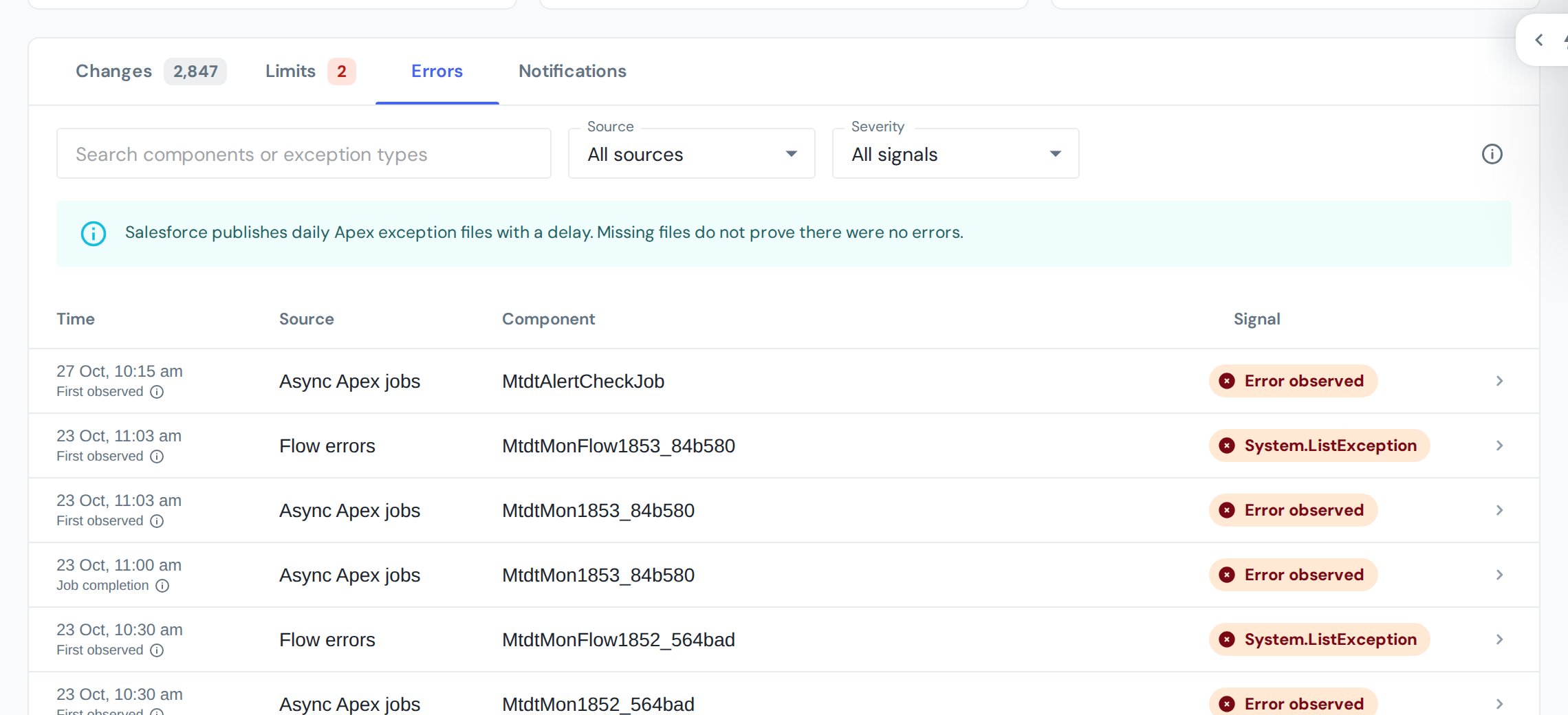
Two things depend on Salesforce. Flow errors cover only the failed interviews that Salesforce keeps, so some Flow failures never appear. Apex exception files are published once a day, often with a delay, and their availability varies by org.
Notifications
The Notifications tab shows every notification your team's rules sent for this org, newest first. Expand a notification to see the changes, errors or limits that triggered it and open the matching tab.
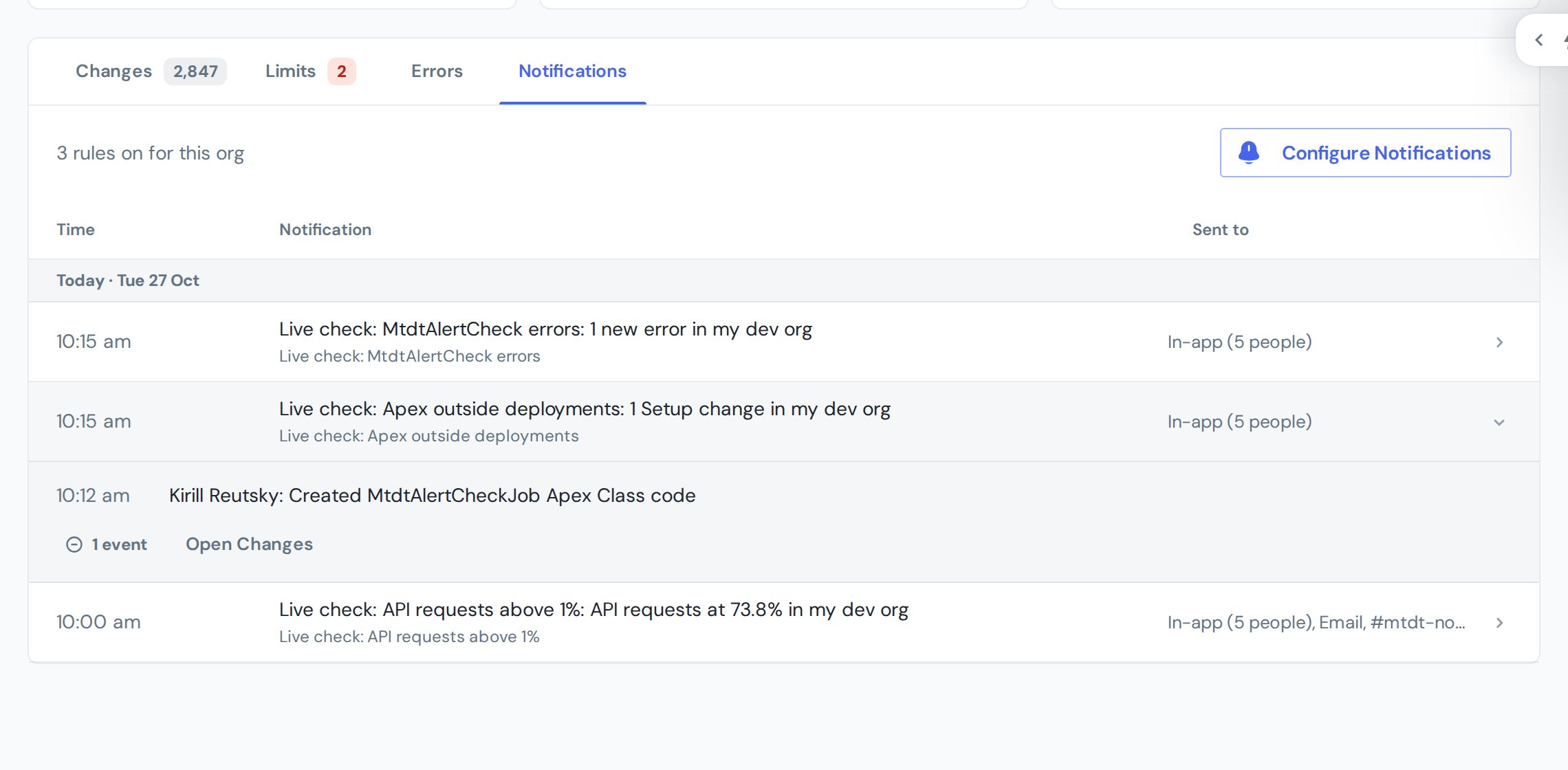
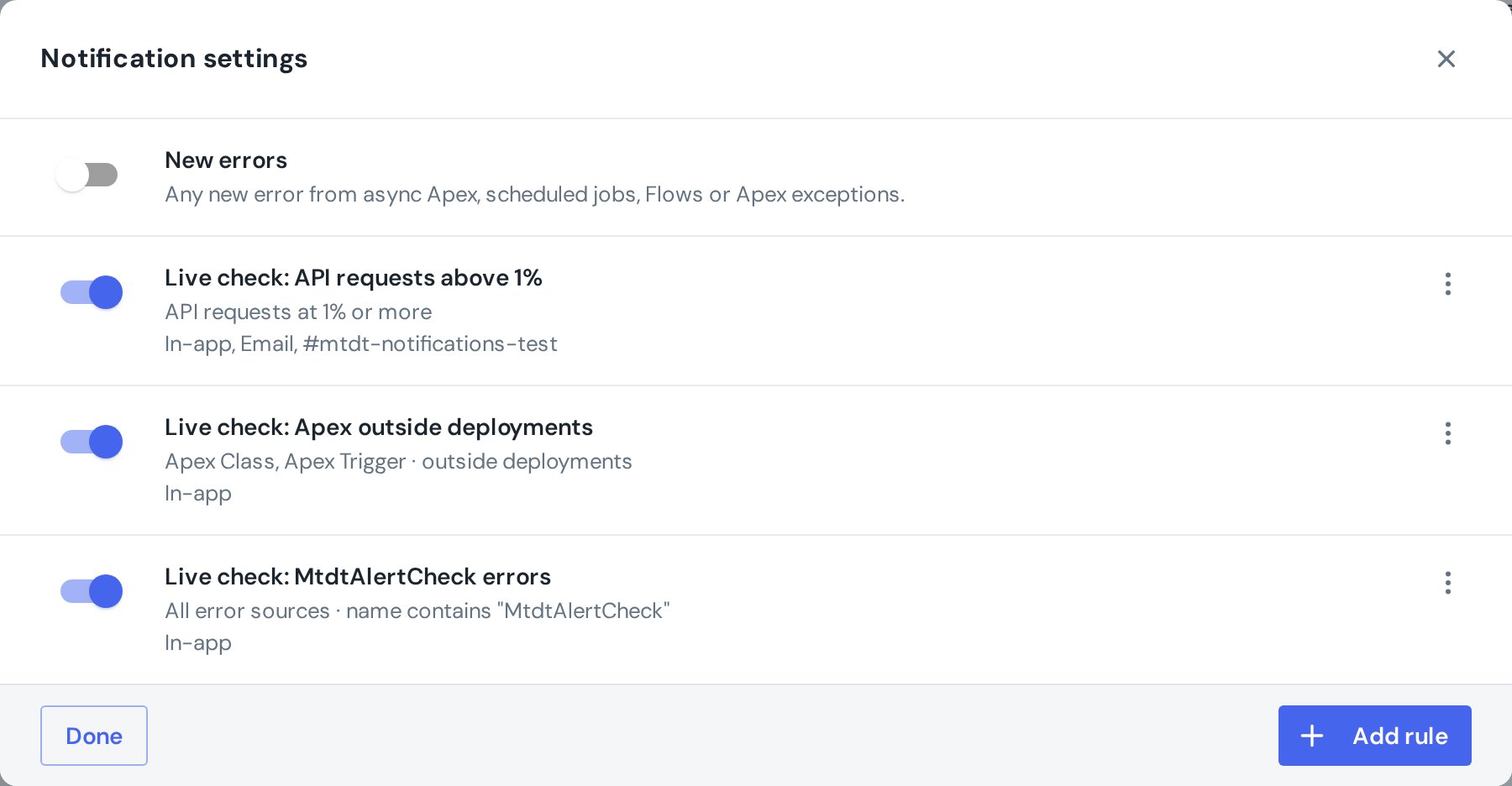
Configure Notifications opens the rules for the org. Rules belong to the team and apply to one org. Anyone who can view the org can see them; changing them needs edit access to the org.
Start with a template
Add rule opens a list of templates grouped by purpose. A template fills in the rule; you can rename it and adjust every condition before saving. If a template needs a source that is turned off, it says so and links to Manage Sources.
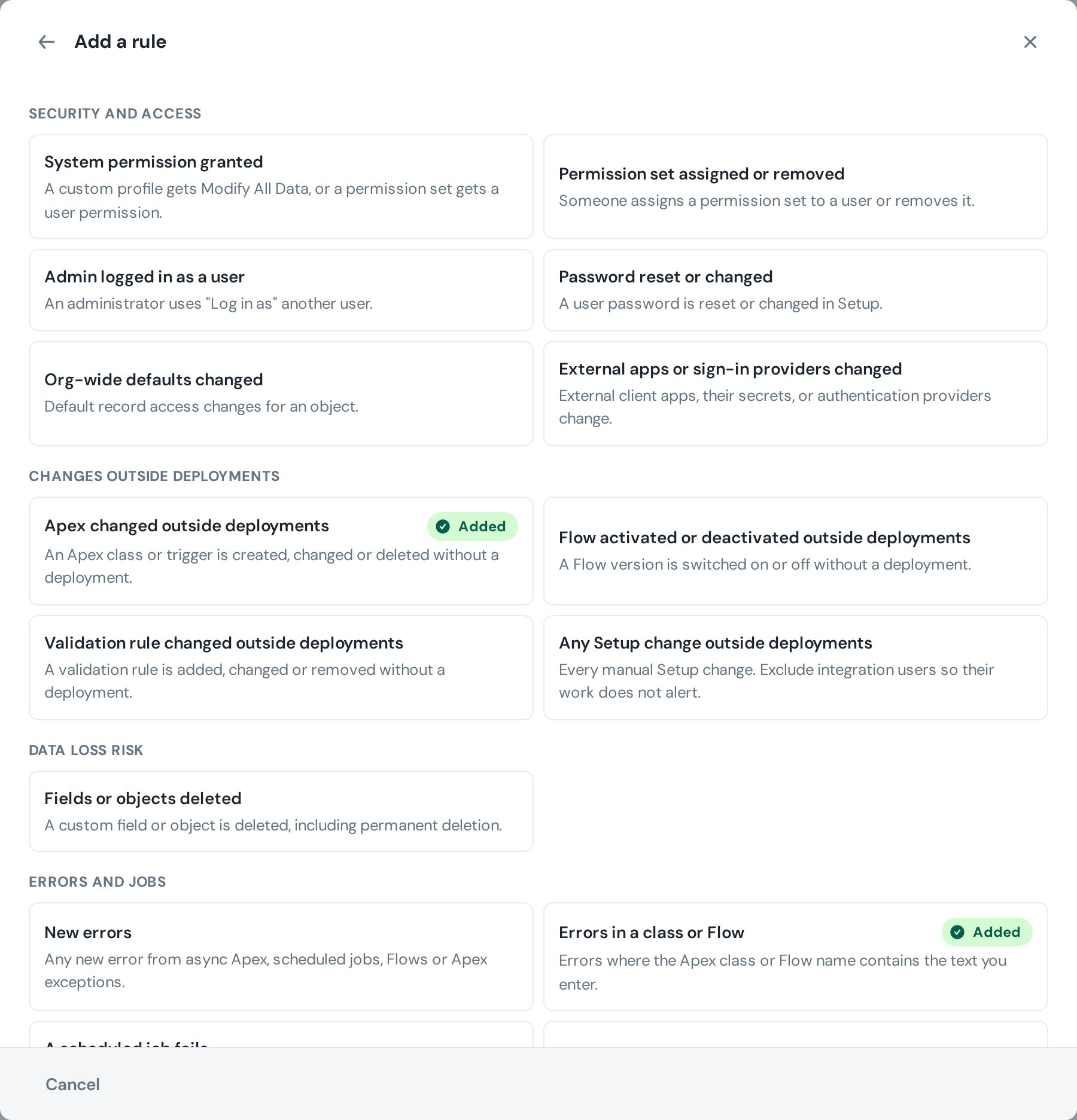
| Group | Template | Notifies when |
|---|---|---|
| Security and access | System permission granted | A custom profile gets Modify All Data, or a permission set gets a user permission |
| Permission set assigned or removed | Someone assigns a permission set to a user or removes it | |
| Admin logged in as a user | An administrator uses "Log in as" another user | |
| Password reset or changed | A user password is reset or changed in Setup | |
| Org-wide defaults changed | Default record access changes for an object | |
| External apps or sign-in providers changed | External client apps, their secrets, or authentication providers change | |
| Changes outside deployments | Apex changed outside deployments | An Apex class or trigger is created, changed or deleted without a deployment |
| Flow activated or deactivated outside deployments | A Flow version is switched on or off without a deployment | |
| Validation rule changed outside deployments | A validation rule is added, changed or removed without a deployment | |
| Any Setup change outside deployments | Any manual Setup change; exclude integration users so their work does not alert | |
| Data loss risk | Fields or objects deleted | A custom field or object is deleted, including permanent deletion |
| Errors and jobs | New errors | Any new error from async Apex, scheduled jobs, Flows or Apex exceptions |
| Errors in a class or Flow | Errors where the Apex class or Flow name contains the text you enter | |
| A scheduled job fails | Errors of scheduled or async jobs whose name contains the text you enter | |
| Scheduled job disappeared | A scheduled job is no longer in the schedule | |
| Limits | API requests above 80% | Daily API requests reach 80% of the limit |
| Storage above 90% | Data or file storage reaches 90% of the limit | |
| Async Apex above 80% | Daily async Apex executions reach 80% of the limit | |
| Email limits above 80% | Single, mass or workflow email limits reach 80% |
When an org has no rules yet, the Notifications tab suggests three of them: production orgs get system permissions, Apex changed outside deployments and deleted fields; other orgs get new errors, API requests and storage.
Build your own rule
You can also start from scratch with one of four kinds of rule:
- Setup changes — by Setup section, action, who made the change, people to ignore, text in the description, and optionally only changes outside deployments.
- Errors — by error source and by the name of the class, Flow or job.
- Scheduled job disappeared — optionally only for jobs whose name contains some text.
- Limit threshold — one or more limits and a percentage. The rule notifies once when a limit crosses the threshold, and again only after it has gone back below.
Every rule has an optional Active from and Active until date and time, for example to watch for any manual change in production over a release weekend. Leave both empty for a rule that is always on. The rule list shows whether a rule is scheduled, active or ended, and each rule can be switched off without deleting it.
Where notifications go
Each rule chooses its own destinations:
- In-app — the bell in mtdt.io, for everyone in the team who can view the org.
- Email — the same people, following each person's email preference for org monitoring alerts.
- Team channels — any of the Slack or Microsoft Teams channels your team admins connected in team settings.
Changes and errors found in one collection run are combined into a single notification per rule. A rule that ignores changes made by deployments waits until the deployments of that period have been collected, at most two hours, before it decides.
Cold Storage: older history
mtdt.io keeps monitoring history in the app for the current month and the three months before it. On the 1st of each month the oldest of those months moves to Cold Storage, the last tab on the monitoring page. Each month there is one ZIP file with the changes, errors, limit samples, collection runs and notifications of that month, and the list shows how many records it holds, its size and the date it will be deleted.
Archives are kept for nine more months, so a record lives about a year in total. Anyone in the team who can view the org can download them; every download is recorded in the team's audit log. Inside the ZIP is a JSON Lines file with one record per line, ready for a script or a log tool.
FAQ
What does org monitoring in mtdt.io track? mtdt.io org monitoring collects Setup changes from the Setup Audit Trail, org limits, deployment requests, failed async Apex jobs, scheduled job errors, failed Flow interviews and Apex exception files. Each source is turned on separately per org, and all of them only read from Salesforce.
How does mtdt.io tell a manual change from a deployment? mtdt.io links a Setup change to a deployment when the same user ran a deployment at the time of the change. Changes without such a deployment are shown as changes outside deployments, and notification rules can be limited to them.
How often is the data updated? Setup changes, deployments, async Apex jobs, scheduled jobs and Flow errors are read every 15 minutes. Limits and Apex exception files are read every hour, and Salesforce publishes Apex exception files once a day, often with a delay.
Can I get a Slack message when someone changes production outside a deployment? Yes. Add the "Any Setup change outside deployments" template, or a narrower one such as "Apex changed outside deployments", and select a Slack channel connected to your team. You can also send the same rule to the in-app bell and by email.
Will a limit rule keep sending notifications while the limit stays high? No. A limit rule notifies once when the limit crosses its threshold and stays quiet until the limit drops below the threshold and crosses it again.
How long does mtdt.io keep org monitoring history? The app shows the current month and the three months before it. Older months move to Cold Storage as one ZIP file per month, kept for nine more months and downloadable by anyone in the team who can view the org.
Who can change monitoring settings and notification rules? Team members who can view an org can see its monitoring page, notifications and rules. Turning sources on or off and creating, changing or deleting rules requires edit access to the org.