Approval Workflows: Who Requests, Who Signs Off
As a team grows, letting everyone deploy straight to production stops being convenient and starts being risky. mtdt.io approval workflows put a second person between a proposed change and the org it lands in: one person requests a deployment, another approves it. The whole handshake lives in the shared team workspace, so there are no exported files, no shared logins, and a permanent record of who signed off on what.
This page is about the process — how to design who proposes and who authorizes. For the permission matrix and where to click, see the Deployment Approvals reference.
The request → approve handshake
The deploy screen adapts to each member's permissions, so the primary button reflects what that person is allowed to do. A member who can deploy directly to the target sees Deploy; the approval step only appears for someone who can't ship to that org on their own.
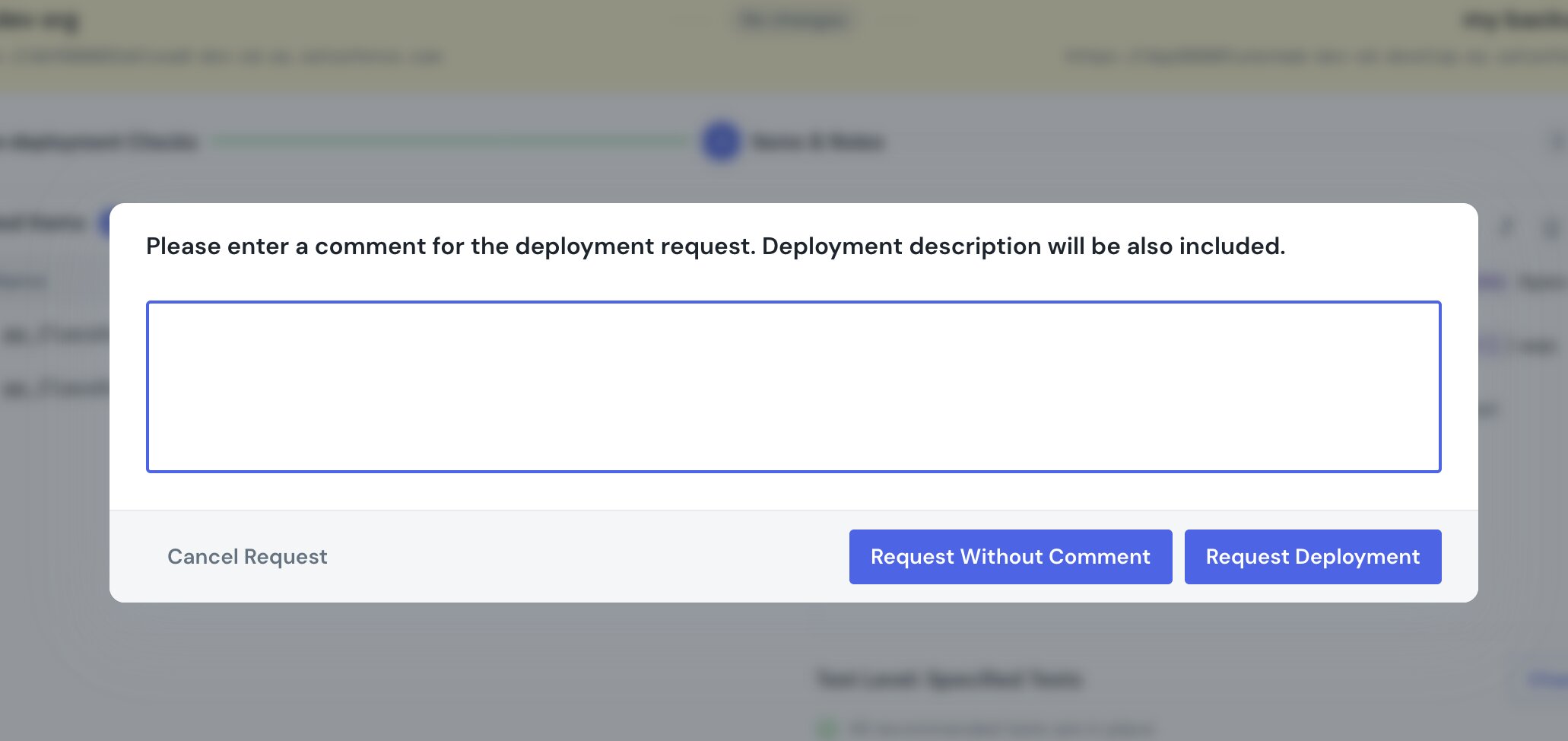
- A member with Request Approve (but not direct deploy to this target) sees Request Approval. Clicking it opens a prompt for an optional comment — Request Deployment submits it, or Request Without Comment skips the note. The deployment moves to Pending Approval instead of running, tagged with who requested it.
- The request surfaces in two places for approvers: the Pending Approvals panel at the top of the dashboard, and the deployment itself.
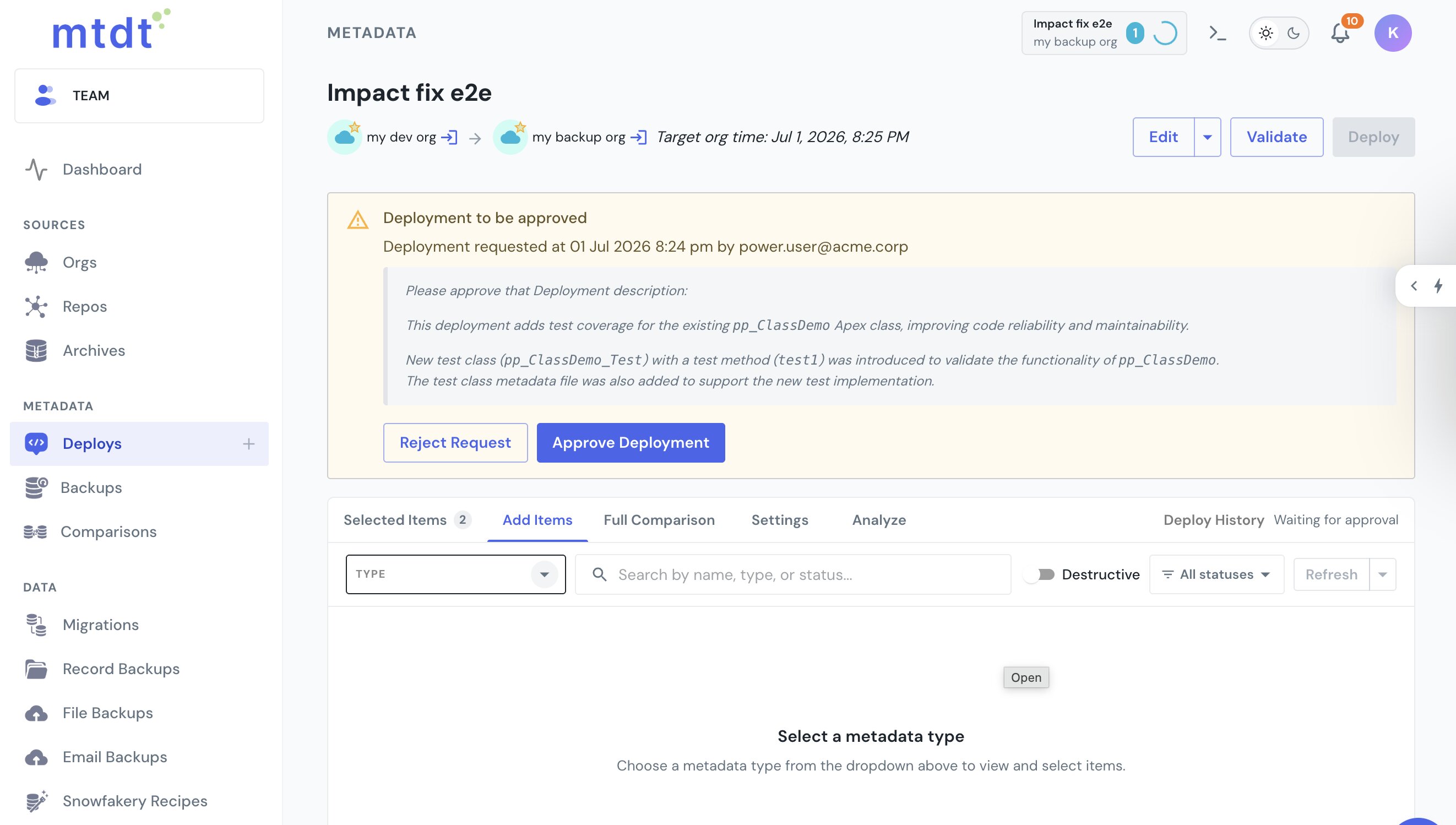
- An approver opens the deployment, reviews who requested it along with the description and diff, then clicks Approve Deployment (the deploy runs) or Reject Request.
The requester's submit prompt:
What the approver sees on the deployment — who requested it, the description, and the Approve / Reject buttons:
Segregation of duties
The point of approvals is that a change is proposed by one person and authorized by another. You build that by keeping the two capabilities in different roles:
- Requesters (day-to-day builders) get Validate and Request Approve — they prepare and propose.
- Approvers (release managers, senior admins) get Approve and the right to Deploy — they review and ship.
A member only lands on the request path for a target they can't deploy to directly — say, a production org marked important where they lack Deploy Important. On that target they see Request Approval rather than Deploy. But if that same member also holds Approve, nothing stops them approving their own request once it's submitted — there's no automatic self-approval block. So don't give Approve to the same people who request; keep the two permissions in separate roles, and every request then needs a different person to sign it off.
Roles are configured per action in Team Settings; see Managing Team Access and Roles.
Protect production with "important" orgs
Approvals become most useful when you apply them selectively — tight on production, relaxed on sandboxes. Mark an org as important (a star on the org) and a direct deploy to it requires the separate Deploy Important permission on top of Deploy:
- Grant Deploy Important only to release managers and admins.
- Everyone else keeps Deploy for sandboxes, so scratch and QA work stays one-click.
- When they target the important org, their button becomes Request Approval — the handshake kicks in automatically for production, and nowhere else.
Combine this with the role split above and a production deploy needs a requester and a distinct approver, while sandbox iteration carries no ceremony.
Cancelling vs. rejecting
The workspace knows whose request is whose, so it treats the two directions differently:
- Cancelling your own request is frictionless — one click, no reason needed.
- Rejecting someone else's request warns you first ("This isn't your request — it was submitted by …") and lets you add a reason, so the requester learns why it was turned down.
Every request, approval, rejection, and cancellation is recorded in the deployment's shared history.
Approvals and scheduled windows
Approvals compose with scheduled deploys. If a requester schedules a validated package for a future maintenance window and it also needs approval, approving it defers the deploy to the scheduled time rather than running it on the spot — the deploy screen says so explicitly ("approving defers the deploy to that time, it won't run immediately"). The deploy then runs itself at the window. A held request — scheduled or awaiting approval — doesn't occupy the org's deploy slot until it actually starts, so it won't block other work in the meantime.
Require MFA to act in the team
For teams that need a higher bar, turn on Require MFA in Team Settings. It's a team-level switch: to perform any gated action — deploying, approving, rejecting — a member must have signed in with multi-factor authentication. The check reads the assurance level of the member's session, so there's no one-time code prompt at each click; a member who signed in without MFA simply can't act in the team until they re-authenticate with it. That keeps every deploy and approval tied to a strongly-authenticated session.
Patterns to start from
- Segregation of duties. Builders get Validate + Request Approve; release managers get Deploy + Approve. No one ships their own change.
- Protected production. Flag prod important and reserve Deploy Important for a small group. Sandboxes stay one-click; production always routes through approval.
- Read-only stakeholders. Give auditors, managers, or clients a role that can view deployment history and status but change nothing.
- Scheduled release windows. Validate now, schedule for the maintenance window, optionally behind approval so the window deploy is both reviewed and timed.
- Solo workflow. A single-person team skips approvals entirely — the ceremony only appears once you add teammates.
Related
- Managing Team Access and Roles — roles and per-action permissions.
- Working with Shared Deployment Projects — how deployments are shared across the team.
- Deployment Approvals reference — the permission matrix and setup steps.